
Files
The ▾ beside + Terminal, or Alt+C, opens the Files tab: WoHo storage on the left, the machine on the right.
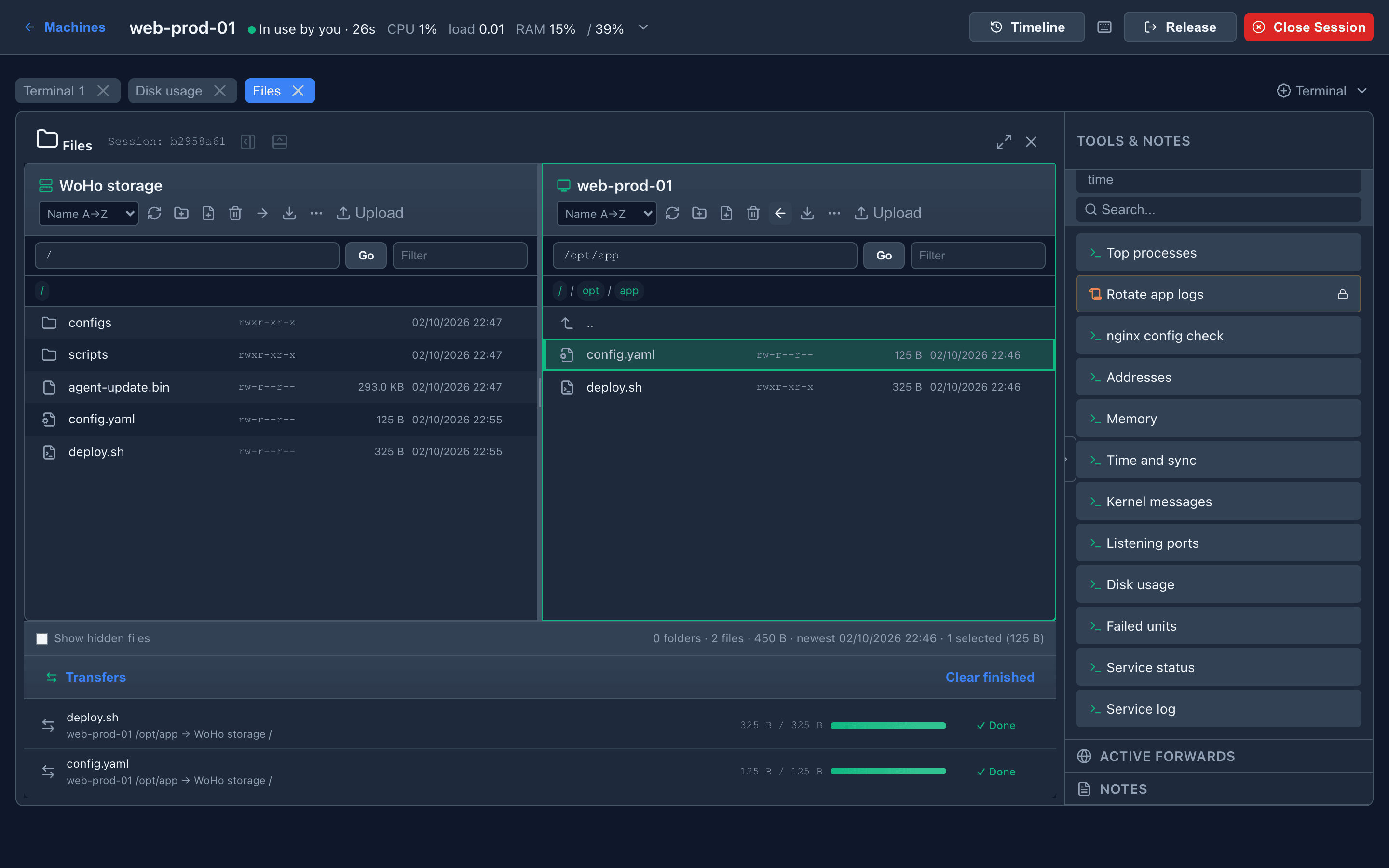
| Pane | Where the files are |
|---|---|
| WoHo storage | On the server, in your own area (storage_dir/files/<username>). A staging place between your computer and machines |
| The machine | The machine’s filesystem, as the agent’s user. With files_root set on the agent, ~ is that directory and nothing outside it is reachable |
When the tab is too narrow for two panes — a phone, or a split — a Machine / WoHo storage switch shows one at a time.
A pane
Section titled “A pane”| Control | Does |
|---|---|
| Sort menu | Name, newest or oldest first, largest or smallest first. Folders stay on top; names sort numbers by value (file2 before file10) |
| ↻ | Refresh the listing |
| Folder+, File+ | New folder; new file (Shift+F4) opened in the editor |
| 🗑 | Delete the selection, after confirmation |
| → / ← | Copy the selection to the other pane |
| ⬇ | Download the selection to your computer |
| ⋯ | The rest of the menu for the selection (Shift+F10) |
| Upload | Upload files from your computer into this folder |
| Path bar, Go | Type a path. The breadcrumb below it is clickable |
Filter (/) | Narrow the folder to names containing the text, with a count. Esc clears it; Ctrl+A then selects only what is shown |
Rows show permissions when the pane is wide enough; a link shows where it points. Hovering a row shows its size in bytes, octal permissions and exact time. The line under the panes says what the machine’s folder holds — folders, files, total size, newest change — and how much is selected. Show hidden files includes dotfiles.
Double-click opens a folder; .., Esc or a breadcrumb goes up. Click selects, Ctrl/⌘-click and Shift-click extend.
The file menu
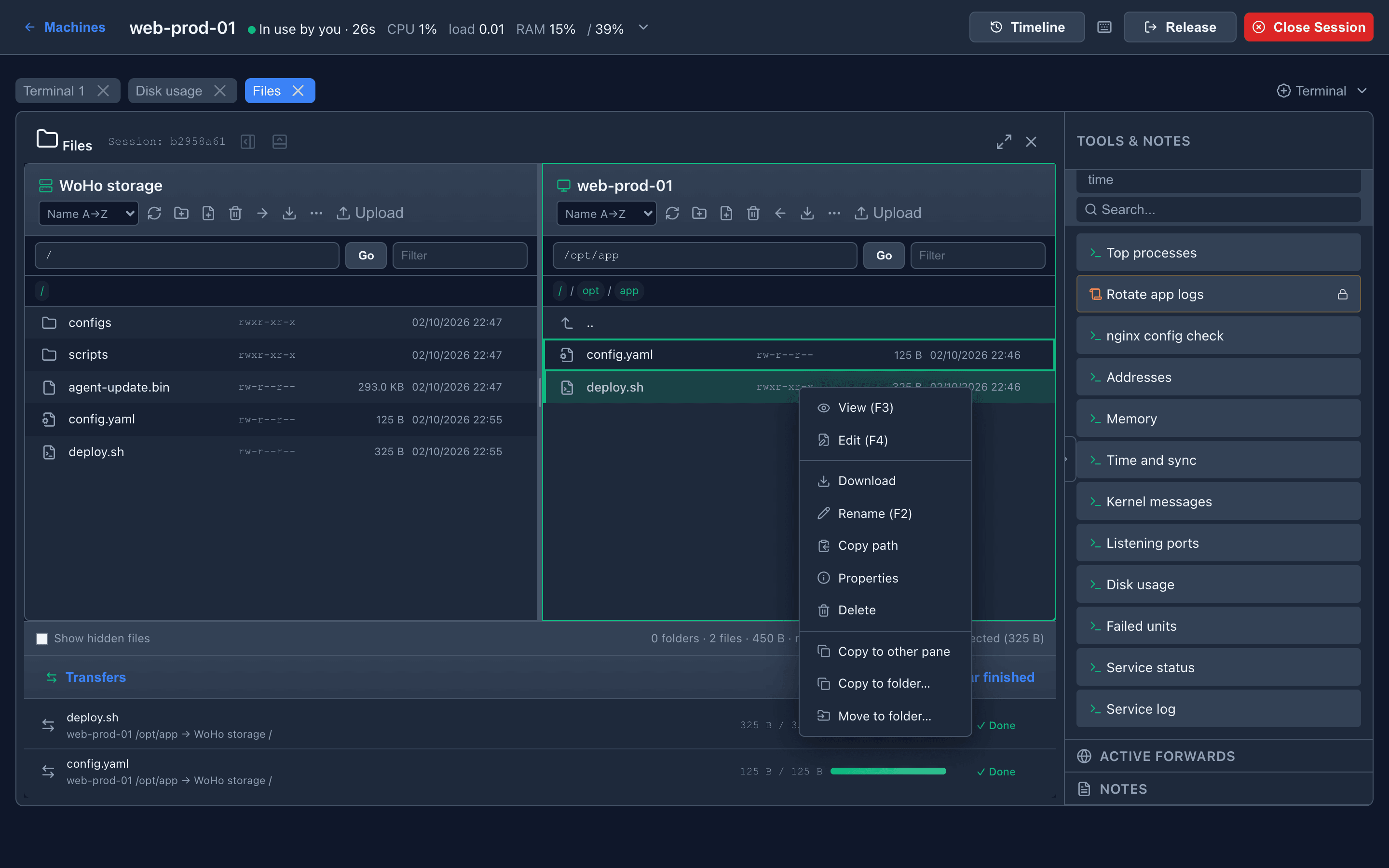
Section titled “The file menu”Right-click a row, or Shift+F10 / the Menu key on the focused one.
| Item | Does |
|---|---|
View (F3), Edit (F4) | Open in the editor |
| Download | To your computer. Several items or a folder become one .zip |
Rename (F2) | A name already taken is refused, never replaced |
| Copy path | The full path to the clipboard |
| Properties | Size in bytes, octal permissions, exact time, full path |
| Delete | After confirmation |
| Copy to other pane | The same as the → / ← button or a drag |
| Copy to folder…, Move to folder… | To another folder on the same machine, without a trip through WoHo storage. Folders too; links are copied as links |
Transfers
Section titled “Transfers”Select, then Copy to the other pane — or drag the selection across. Every transfer appears in the list under the panes with its source and destination.
| On a row | Means |
|---|---|
| Done | The destination has confirmed the file is in place |
| A reason in red, Retry | The transfer failed; Retry sends it again |
| × | Cancel a running transfer. Whatever it was replacing keeps its old contents |
| Clear finished | Removes done and failed rows; running ones stay |
The list folds from its header and keeps counting what runs and what failed while folded.
Nothing is destroyed by a transfer that does not finish. An upload or copy replaces the destination only once every byte has arrived; until then the old file stays as it was.
Folders
Section titled “Folders”A folder copies both ways, hidden files included, as one row that counts its files. Links inside are skipped and named, never followed; files that fail are listed, and Retry copies only those. A folder of more than 10,000 files, 2 GiB or 32 levels is refused before anything is copied.
Existing names
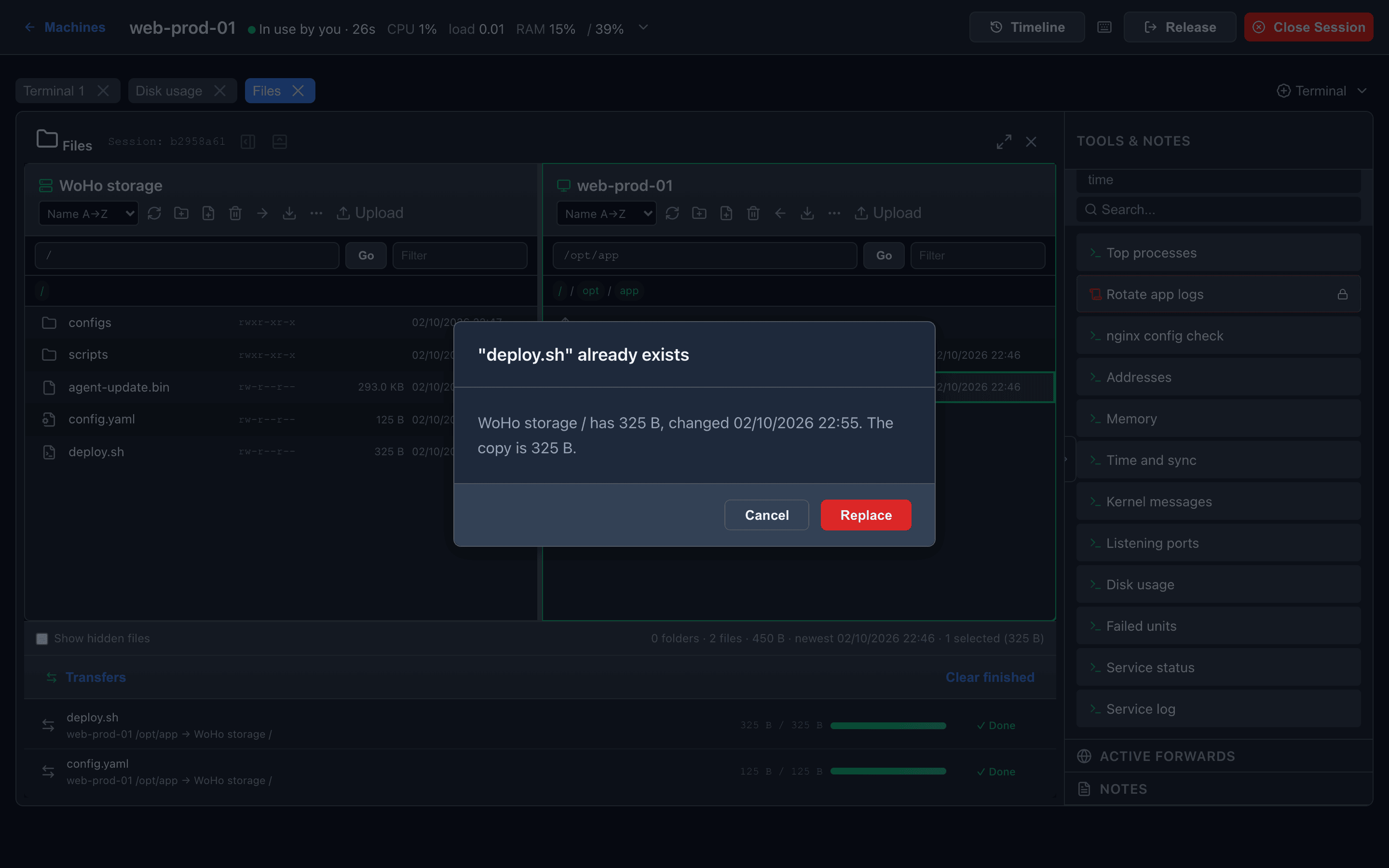
Section titled “Existing names”Copying or uploading onto a name that already exists asks first and names what is there, with its size and date.
| Choice | Does |
|---|---|
| Replace | Overwrite |
| Keep both | Save as name (1).ext |
| Skip existing | For several files: copy only the new ones |
The check uses the folder as last listed — refresh if something may have appeared. While hidden files are hidden, every dotfile asks, since one may be there unlisted. Unless you chose Replace, the destination itself refuses to overwrite a file that appeared after the listing, and the row says so.
Downloads
Section titled “Downloads”Download on one file saves it. On several items, or a folder, it saves one .zip: WoHo storage’s is built by the server, a machine’s is streamed by its agent. Links are listed in SKIPPED-by-WoHo.txt inside the archive instead of being followed; more than 10,000 files or 1 GiB is refused.
Copy and move on the machine
Section titled “Copy and move on the machine”Copy to folder… and Move to folder… work on files and folders. A name already taken asks about Replace; a move across filesystems removes the source only after the copy succeeded; more than 10,000 files, 10 GiB or 32 levels is refused. Both appear in History.
Keyboard
Section titled “Keyboard”In a file list:
| Key | Action |
|---|---|
↑ / ↓, Shift+↑ / ↓ | Move; extend the selection |
Enter | Open a folder, or download a file |
Esc | Parent folder |
Ctrl+Space | Select or deselect the focused item |
Ctrl+A | Select everything shown |
Delete | Delete the selection |
F2 | Rename |
F3 / F4 | View / edit a file |
Shift+F4 | Create a file and edit it |
/ | Filter this folder by name |
Shift+F10, Menu | The file menu for the focused item |
Behind a reverse proxy
Section titled “Behind a reverse proxy”Machine → WoHo storage copies are an HTTPS upload from the agent to the panel’s address. For nginx, allow large bodies and disable request buffering on /api/files/client-upload — see the nginx configuration.
Agent version
Section titled “Agent version”Cancel, zip downloads from a machine, Copy/Move to folder, Replace/Keep both on a machine, and the no-overwrite guarantee on the machine side need the current agent. With an older agent the panel’s half still works and the machine behaves as before: a copy onto an existing name replaces it.