
Admin Panel
Logging In
Section titled “Logging In”Open http://your-server:8080 in any modern browser (Chrome 80+, Firefox 75+, Safari 14+, Edge 80+).
Password
Section titled “Password”- Enter your username and password.
- Click Sign In or press Enter.
Passkey (WebAuthn / FIDO2)
Section titled “Passkey (WebAuthn / FIDO2)”- Click Sign in with Passkey.
- Follow your browser or device prompt (fingerprint, face ID, PIN, or hardware key).
Register a passkey at Account & Security → Security Keys after logging in with your password.
Sessions Dashboard
Section titled “Sessions Dashboard”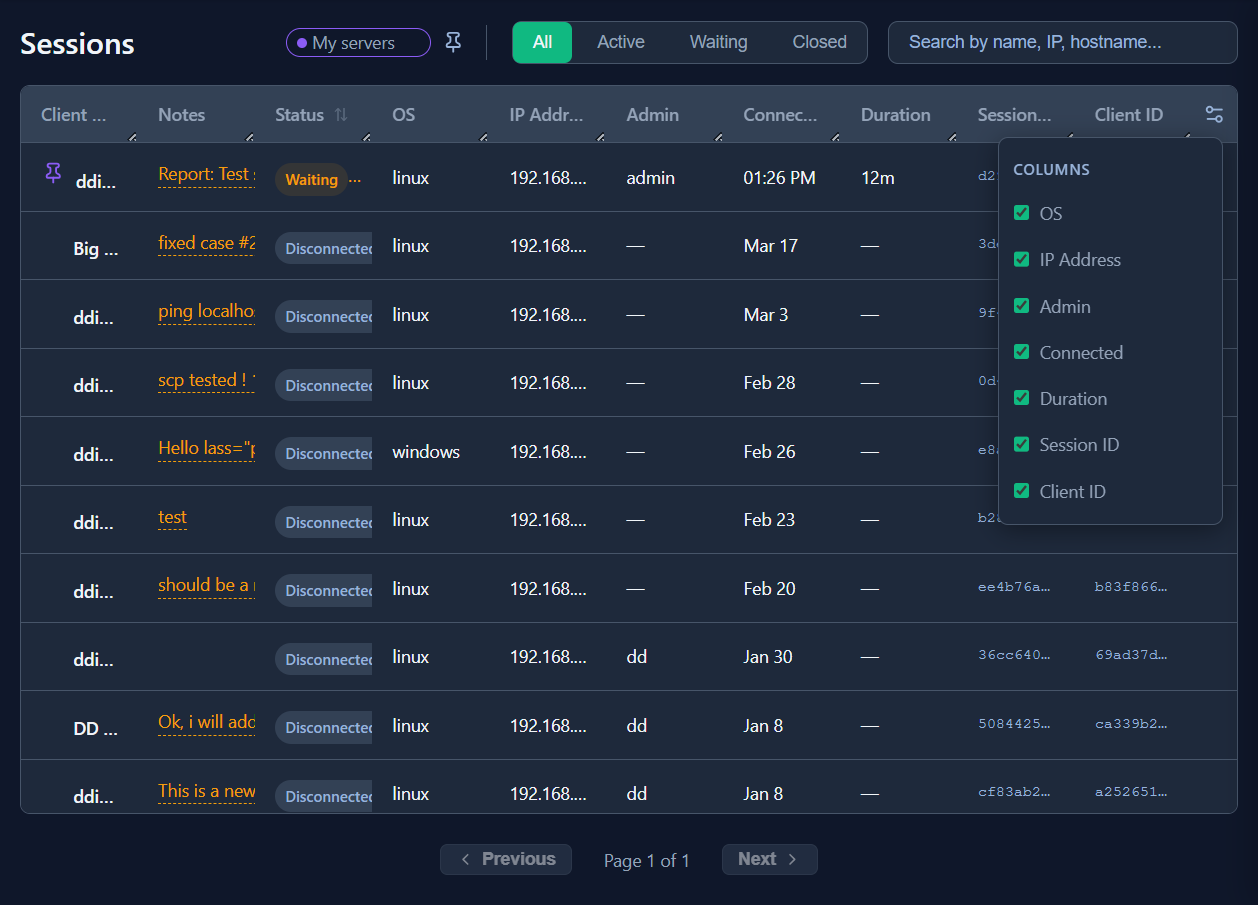
Table Columns
Section titled “Table Columns”| Column | Description |
|---|---|
| Client Name | Display name set at client install time |
| Notes | Preview of the latest admin note for this client (amber text) |
| Status | Current connection state (see below) |
| OS | Operating system reported by the client (linux, windows) |
| IP Address | Client’s IP address and port at the time of connection |
| Admin | Username of the admin who currently has the session claimed |
| Connected | Time when the client last connected |
| Duration | How long the current connection has been active |
Session Status
Section titled “Session Status”| Badge | Meaning |
|---|---|
| Waiting | Client connected — available to claim |
| Active | Claimed by an admin |
| Disconnected | Client offline — historical record |
Filtering
Section titled “Filtering”| Control | Effect |
|---|---|
| All tab | Every session including disconnected |
| Active tab | Currently claimed sessions only |
| Waiting tab | Connected but unclaimed sessions |
| My servers toggle (pin icon) | Show only sessions previously claimed by your account |
Claiming a Session
Section titled “Claiming a Session”Claim a session before opening a terminal or file browser — this prevents two admins from working on the same machine.
Click Claim on a Waiting row, or open the detail panel and click the green Claim button.
Releasing a Session
Section titled “Releasing a Session”Click Release on the session row or in the detail panel. Sessions are also released automatically on logout or when the browser tab closes.
Session Detail Panel
Section titled “Session Detail Panel”Click any row to open the detail panel.
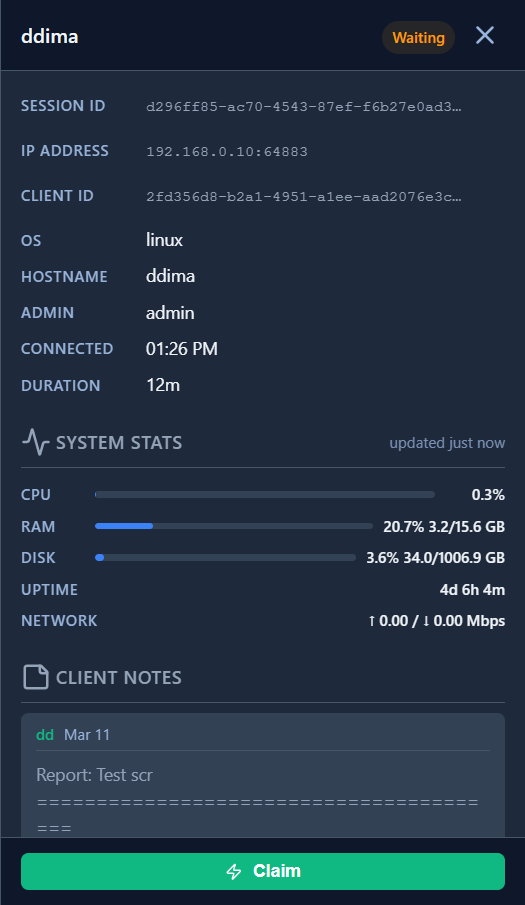
Identity Fields
Section titled “Identity Fields”| Field | Description |
|---|---|
| Session ID | Unique ID for the current connection (changes on reconnect) |
| IP Address | Client’s IP address and ephemeral port |
| Client ID | Persistent UUID that identifies this machine across reinstalls (click the copy icon to copy) |
| OS | Operating system |
| Hostname | OS-reported hostname |
| Admin | Which admin has claimed this session |
| Connected | Time the client connected |
| Duration | How long the connection has been active |
System Stats
Section titled “System Stats”Real-time system metrics:
| Metric | Example |
|---|---|
| CPU | 1.6% |
| RAM | 20.6% 3.2 / 15.6 GB |
| Disk | 3.6% 34.0 / 1006.9 GB |
| Uptime | 4d 5h 32m |
| Network | ↑ 0.00 / ↓ 0.00 Mbps |
Client Notes
Section titled “Client Notes”Timestamped notes left by any admin. Notes persist across disconnects and are visible to all admins.
Keyboard Shortcuts
Section titled “Keyboard Shortcuts”| Shortcut | Action |
|---|---|
Alt+T | New SSH (terminal) tab |
Alt+W | New WebProxy (web proxy) tab |
Alt+C | New SCP (file browser) tab |
Alt+N | Open Templates picker |
F3 | View file in read-only mode (SCP tab) |
F4 | Edit file (SCP tab) |
Ctrl+S | Save file (editor) |
F6 | Rename file |
F8 | Delete file |
Troubleshooting
Section titled “Troubleshooting”Client not appearing in the sessions table
Section titled “Client not appearing in the sessions table”- Confirm the client service is running:
Terminal window systemctl status woho-client # LinuxGet-Service woho-client # Windows PowerShell - Check client logs:
journalctl -u woho-client -n 50 - Confirm outbound TCP port
9000is not blocked by a firewall. - If Pre-Shared Keys are enabled, verify the key has not been revoked — see Pre-Shared Keys.
Terminal not responding
Section titled “Terminal not responding”- Check that the session is Waiting or Active on the dashboard.
- Open a new SSH tab (
Alt+T) — the previous tab may be stuck. - Check resource usage in the detail panel; a CPU/memory spike can delay PTY responses.
- Release and re-claim the session, then open a fresh SSH tab.
File transfer fails
Section titled “File transfer fails”- Verify available disk space on the destination.
- Check that the client agent has read/write permission for the target path.
- Avoid special characters in filenames, particularly on Windows.
Cannot open a file in the viewer or editor
Section titled “Cannot open a file in the viewer or editor”| Symptom | Fix |
|---|---|
| ”File too large” | Files over 5 MB cannot be opened — download to inspect locally |
| ”Binary file” | Binary files cannot be edited in the browser; download then re-upload after editing |
| ”Permission denied” | The client agent may not have read access to that path |
| Page goes blank | The session may have been released; re-claim and reopen |
Proxy (port forwarding) not working
Section titled “Proxy (port forwarding) not working”- Confirm the service is listening on
localhost:<port>on the client. - Test from the client:
curl -s http://localhost:<port> - Some applications reject modified
Hostheaders — check origin/CORS settings.