
Templates
A template is a command or a script you run on any machine from the workspace sidebar. Templates in the header manages them.
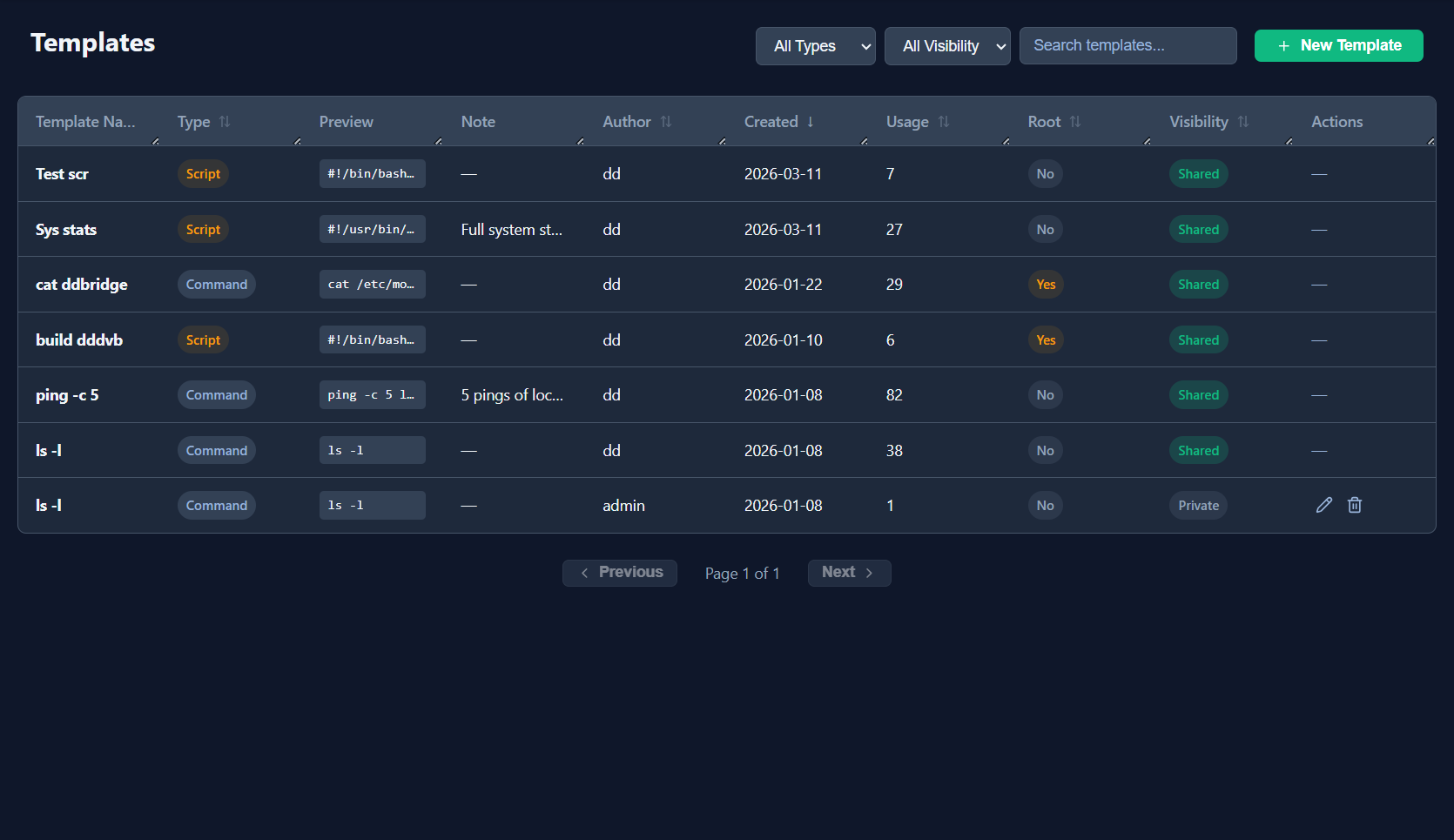
A template
Section titled “A template”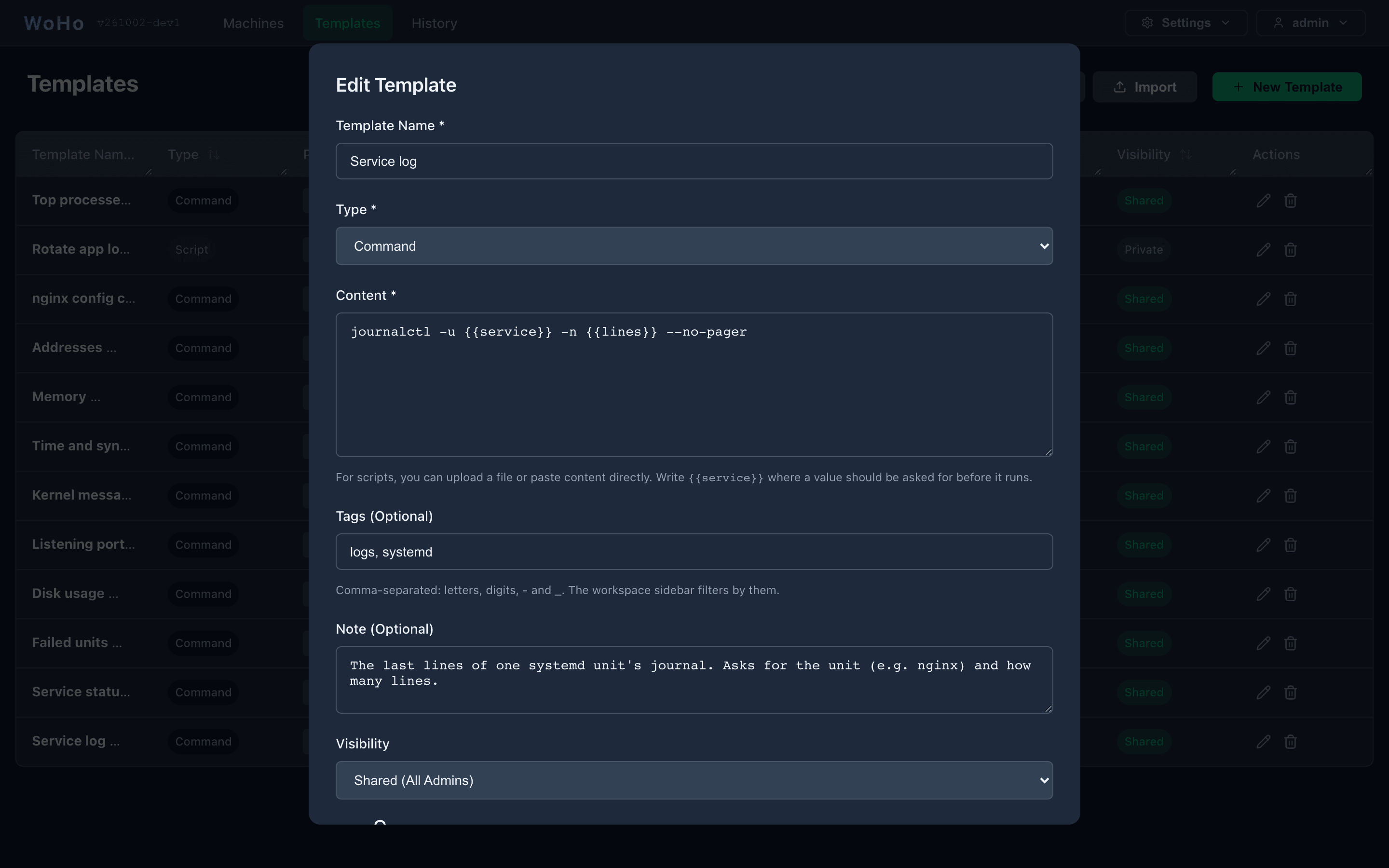
| Field | |
|---|---|
| Name | Shown in the list and the sidebar |
| Type | Command: one line, typed into the terminal. Script: a multi-line file, written to a temp file on the machine and executed |
| Content | The command or script. Write {{name}} wherever a value should be asked for |
| Tags | Comma-separated: letters, digits, - and _. The workspace sidebar filters by them |
| Note | What it does; shown in the list |
| Visibility | Private (only you) or Shared (every admin) |
| Requires sudo | The Root column, and a lock on the template’s card in the workspace. Asks for the machine’s sudo password before running |
Only the author can edit or delete a template; other admins see a shared one without the edit and delete buttons.
Parameters
Section titled “Parameters”A {{name}} in the content — lowercase letters, digits and _ — is asked for before Run, Insert or Report.
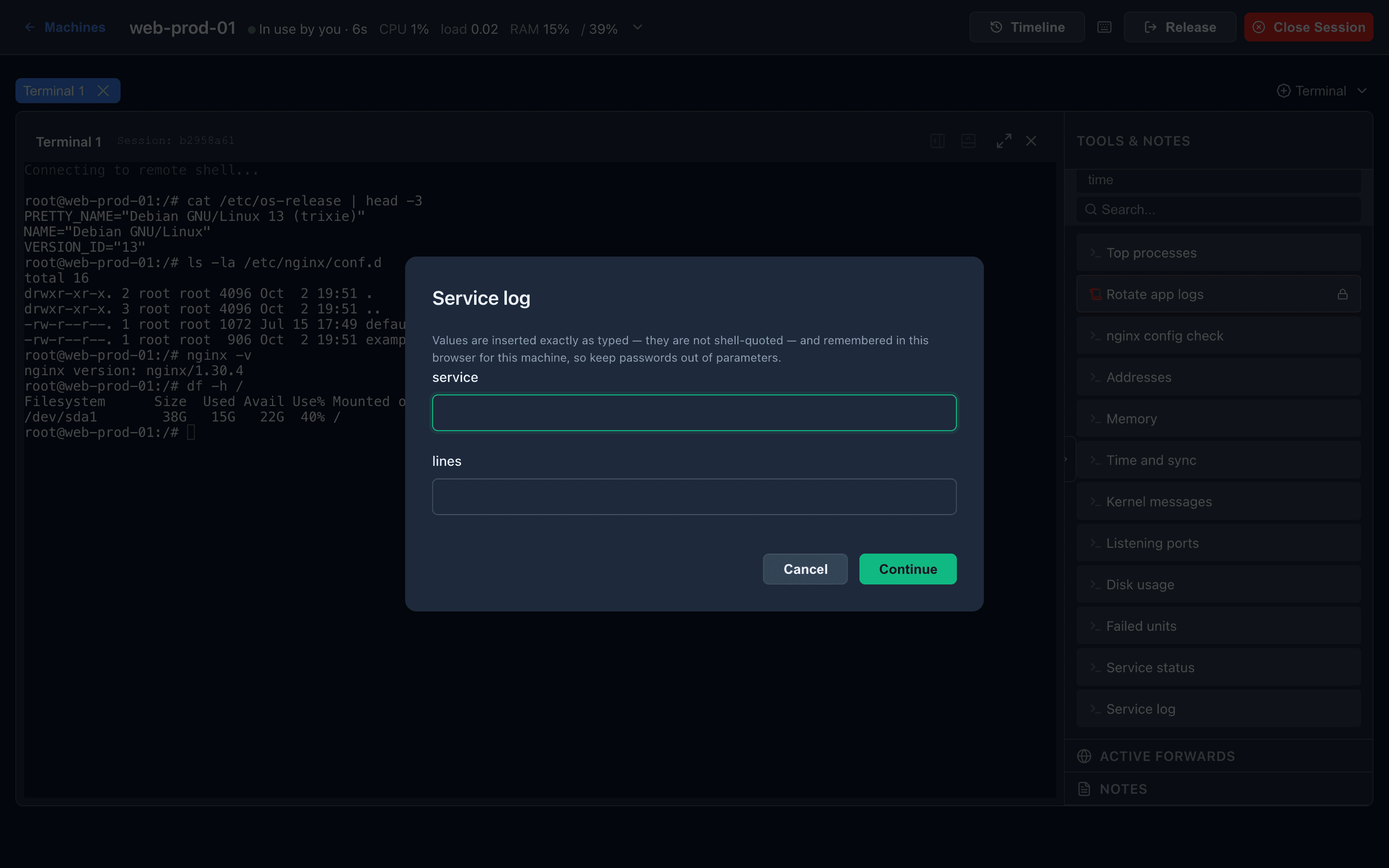
Values are inserted exactly as typed, not shell-quoted — quote them in the template if needed. The last values are remembered per machine in your browser, in plain text, so keep passwords out of parameters. A template whose command uses {{path}} can be run on an open file from the editor’s Run a check… — there the path is inserted shell-quoted.
Export and import
Section titled “Export and import”Export downloads every template you can see as woho-templates.json. Import adds the templates of such a file and skips names you already have. A starter pack of diagnostics — service log and status, failed units, disk, listening ports, kernel messages, time sync, memory, addresses — is at starter-templates.json.
In the workspace
Section titled “In the workspace”The sidebar’s Templates section lists yours and the shared ones. The chips above it filter by tag, the box searches; Alt+F focuses it, Alt+N creates a new template, + too.
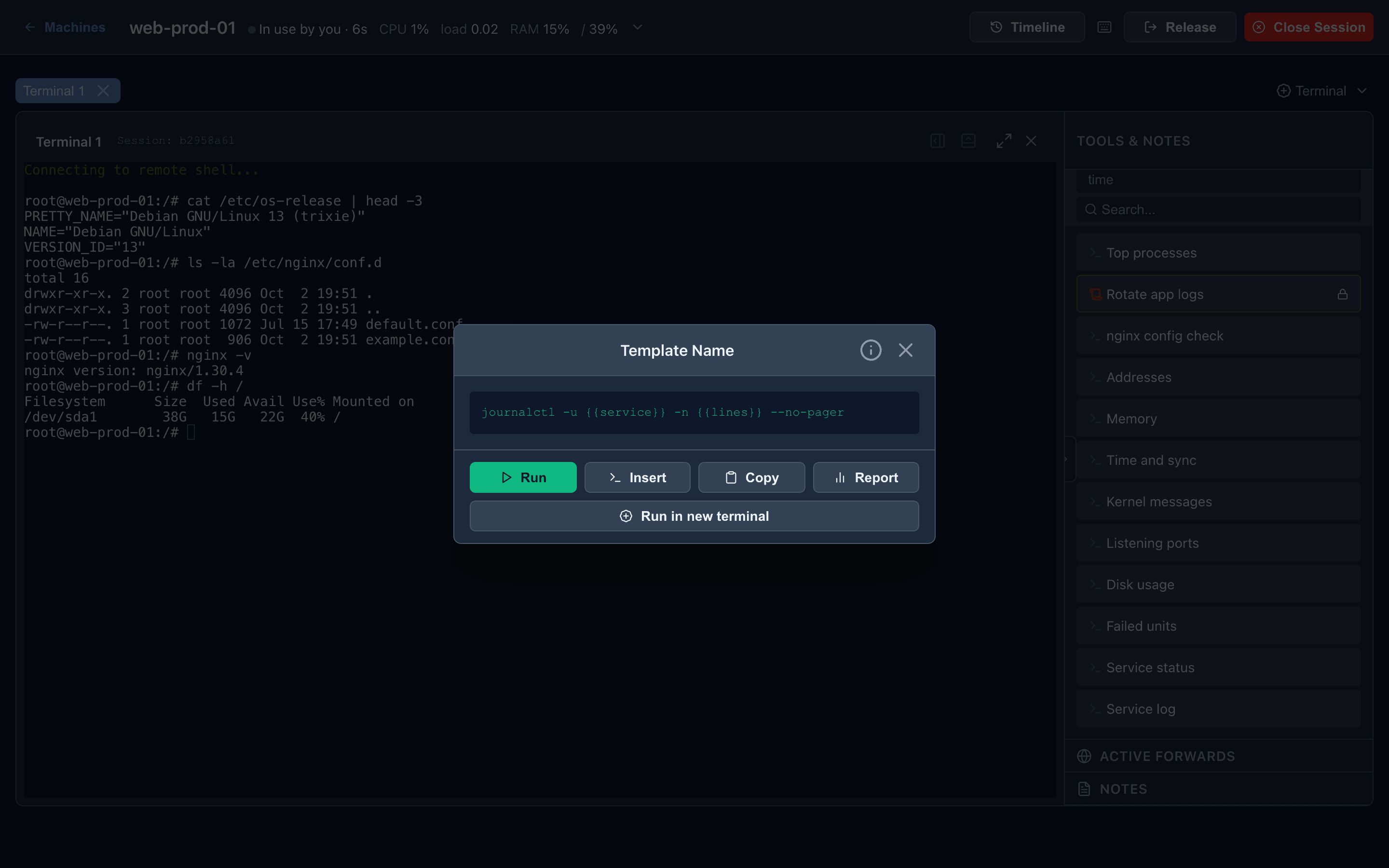
Click a card:
| Action | Does |
|---|---|
| Run | Clears the prompt of the open terminal, types the command, presses Enter. With no terminal open, opens one first |
| Insert | Types it without Enter, for you to read before running |
| Copy | To the clipboard, as written |
| Report | Runs it in the background and opens a Report tab with the output, exit status and time. Download it, Save it as a note on the machine, or Copy it |
| Run in new terminal | Always a fresh terminal tab |
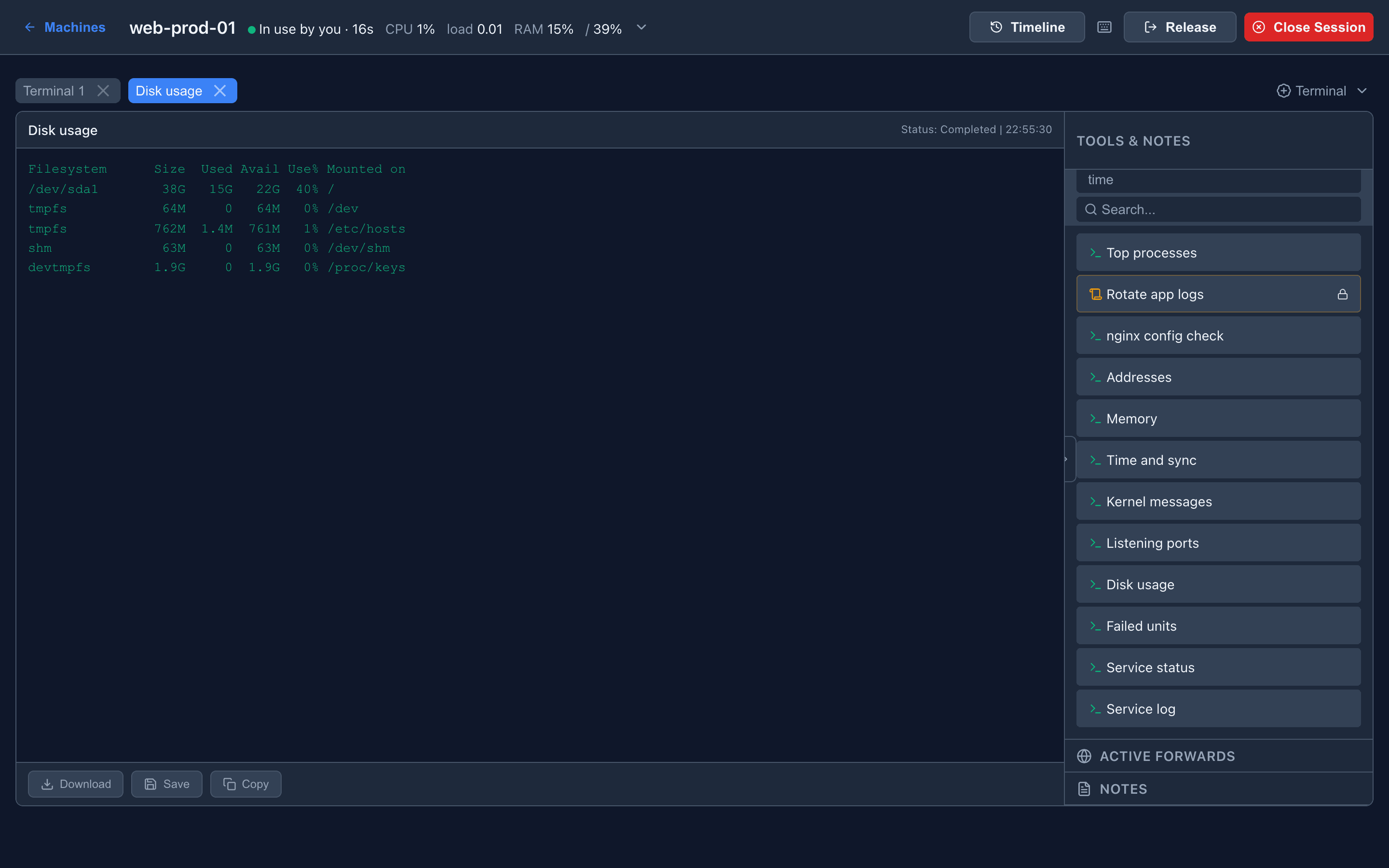
A template that requires sudo asks for the password in a dialog; the password is sent to the machine for that run and not stored. Runs are in History with secrets redacted.