
SSH Terminal
Это содержимое пока не доступно на вашем языке.
Full PTY (pseudo-terminal) connected to the remote machine.
Pane Controls
Section titled “Pane Controls”Each pane header shows the tab name, session ID, and live latency to the client. The control buttons on the right are:
| Button | Action |
|---|---|
| ⊡ | Split right — open a new pane to the right of this one |
| ⊟ | Split down — open a new pane below this one |
| ⤢ | Maximise this pane to full screen |
| × | Close this pane |
Split Panel
Section titled “Split Panel”The split-panel workspace lets you tile multiple panes side-by-side.
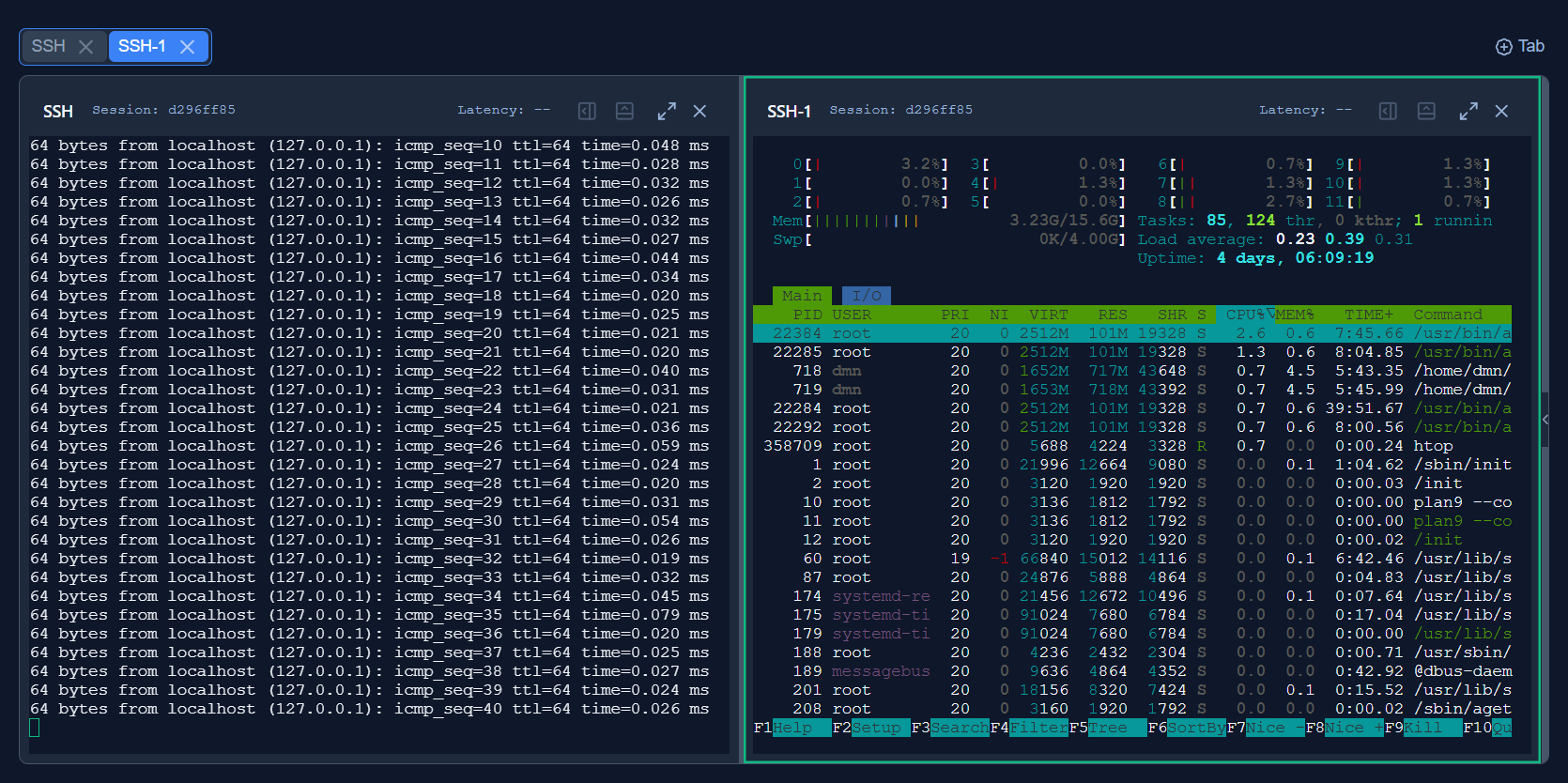
Creating Splits
Section titled “Creating Splits”Click ⊡ or ⊟ in any pane header to create a new empty pane, then open any tab type inside it with Alt+T (SSH), Alt+C (SCP), or Alt+W (WebProxy).
Tab Bar
Section titled “Tab Bar”The tab bar at the top of the workspace shows all open tabs for the current session. Tabs are named by type and number (e.g. SSH, SSH-1, SSH-2, SCP-1). The active tab is highlighted in blue.
Click a tab to bring it into focus. Click × on a tab to close it. Use the ⊕ Tab button at the far right to open a new tab.
Layout Behaviour
Section titled “Layout Behaviour”| Behaviour | Details |
|---|---|
| Resize panes | Drag the divider between two panes |
| Reset to 50/50 | Double-click the divider |
| Minimum pane size | 200 px wide, 150 px tall |
Layouts are not persisted across page reloads — you will need to recreate splits after refreshing the browser.
Closing Panes
Section titled “Closing Panes”Closing a pane reflows the remaining panes. Closing the last pane collapses the split layout.
Reconnecting After Disconnect
Section titled “Reconnecting After Disconnect”If your browser connection drops, the terminal output buffer (up to 1 MB) is preserved. Open a new SSH tab to resume — the buffer replays immediately.
See Keyboard Shortcuts for all workspace shortcuts.