
Pre-Shared Keys
Это содержимое пока не доступно на вашем языке.
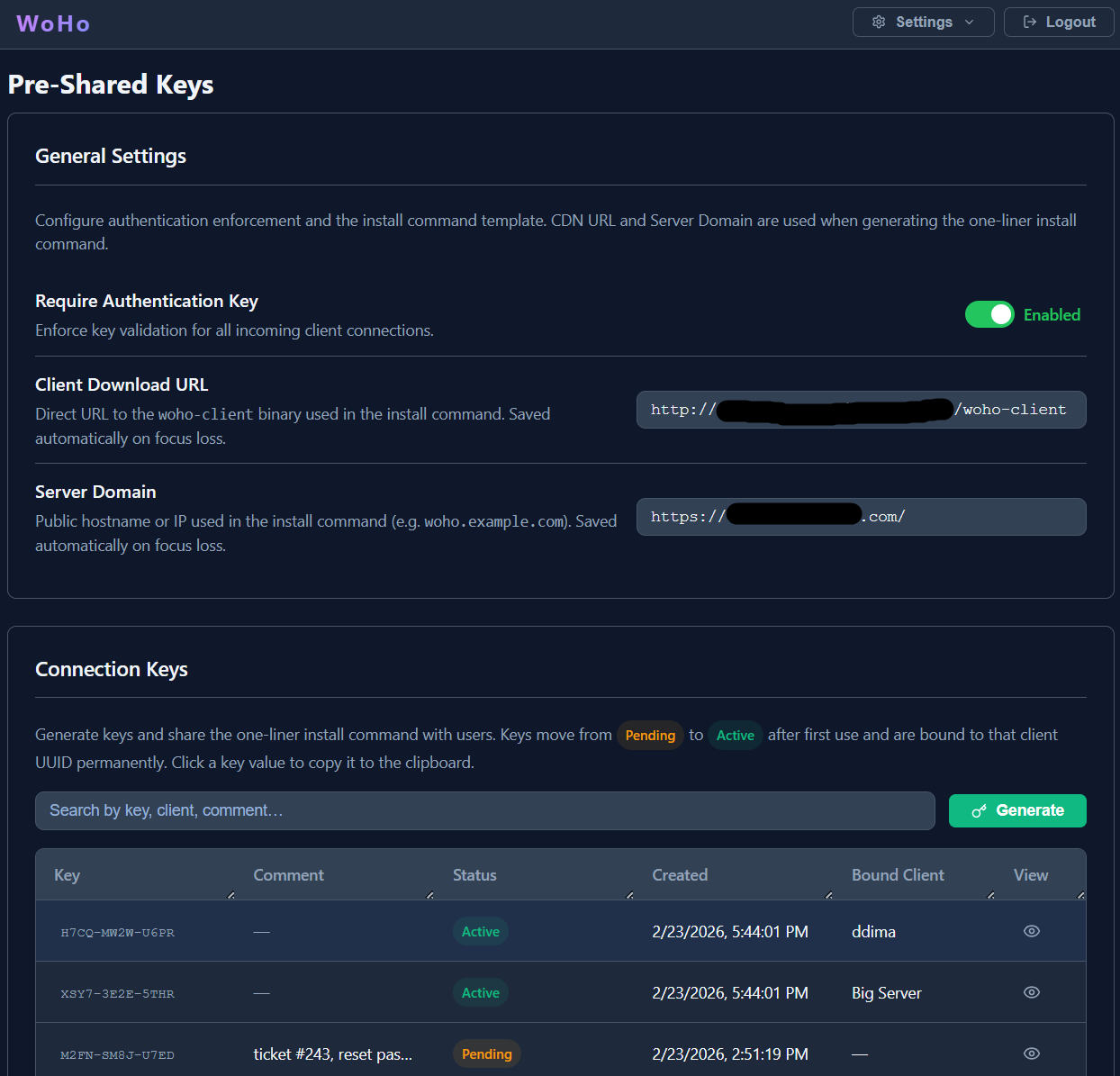
When enabled, every client must present a valid key during registration. Keys are generated in the admin panel and distributed out-of-band.
How It Works
Section titled “How It Works”sequenceDiagram
participant C as Client
participant S as Server
C->>S: register { auth_key: "XXXX" }
alt require_auth_key disabled
S-->>C: registered (key ignored)
else require_auth_key enabled
S->>S: look up key in database
alt not found / revoked
S-->>C: AUTH_FAILED
else pending
S->>S: bind key to client UUID
Note over S: status: pending → active
S-->>C: registered
else active + UUID match
S-->>C: registered (reconnect)
else active + UUID differs
S-->>C: AUTH_FAILED (key reuse attempt)
end
end
Key Lifecycle
Section titled “Key Lifecycle”| Status | Who can connect | Notes |
|---|---|---|
| pending | Any single client (first-come, first-served) | Becomes active and UUID-bound after first use |
| active | Only the bound client (matched by UUID) | Reconnects freely; other clients are rejected |
| revoked | Nobody | Soft-deleted; kept for auditing |
Enable / Disable Key Authentication
Section titled “Enable / Disable Key Authentication”- Open the Admin Panel → header dropdown → Pre-Shared Keys.
- Under General Settings, toggle Require Authentication Key.
- The change takes effect immediately — no server restart needed.
Managing Keys
Section titled “Managing Keys”Generate Keys
Section titled “Generate Keys”- Open Pre-Shared Keys.
- Click Generate Keys.
- Set Quantity (1–100) and an optional Label (e.g.
Customer ABC – batch 1). - Click Generate. New keys appear in the table with status
pending.
Keys use the format XXXX-XXXX-XXXX drawn from an unambiguous alphabet (excludes 0, O, 1, I, L) to minimise transcription errors.
Copy Install Command
Section titled “Copy Install Command”Each key row has a Copy button that copies a ready-to-run install command:
curl -Lo /usr/local/bin/woho-client https://woho.cesbo.com/client-latestchmod +x /usr/local/bin/woho-clientwoho-client install -server YOUR_SERVER:9000 -key XXXX-XXXX-XXXXDistribute this command to the machine owner — they do not need access to the admin panel.
Revoke a Key
Section titled “Revoke a Key”Click Revoke on a key row. The associated client will get AUTH_FAILED on its next reconnect. The record is kept for auditing.
Reset a Key
Section titled “Reset a Key”Resetting returns an active or revoked key to pending, clearing the UUID binding. Use this when:
- A client was reinstalled and got a new UUID.
- You want to reassign a key to a different machine.
- Testing / lab environments.
Delete a Key
Section titled “Delete a Key”Permanently removes the key from the database. Use with caution — this cannot be undone.
Installing a Client with a Key
Section titled “Installing a Client with a Key”During Service Install
Section titled “During Service Install”Pass the -key flag when installing the client service:
# Linux (run as root)woho-client install -server your-server.com:9000 -name "My-Server" -key ABCD-EFGH-JKMN
# Windows (Administrator PowerShell).\woho-client.exe install -server your-server.com:9000 -name "My-PC" -key ABCD-EFGH-JKMN
The key is saved to /var/lib/woho/auth_key and persists across service restarts.
Interactive Prompt
Section titled “Interactive Prompt”When running the client directly (not as a service), if the server requires a key and none is configured, the client prompts for input. Type the key and press Enter to save and retry, or press Enter without a key to exit.
In service mode (no TTY), the client logs a remediation message and stops.
Adding a Key to an Existing Service
Section titled “Adding a Key to an Existing Service”Stop the service, reinstall with the -key flag, then restart:
# Linuxsystemctl stop woho-clientwoho-client install -server your-server.com:9000 -name "My-Server" -key ABCD-EFGH-JKMNsystemctl start woho-client
# Windows (Administrator PowerShell)Stop-Service woho-client.\woho-client.exe install -server your-server.com:9000 -name "My-PC" -key ABCD-EFGH-JKMNStart-Service woho-client
Connection Scenarios
Section titled “Connection Scenarios”Authentication Disabled
Section titled “Authentication Disabled”The server ignores any key the client sends. All clients connect freely.
Authentication Enabled
Section titled “Authentication Enabled”| Client state | Key status | Result |
|---|---|---|
| No key configured | — | ❌ AUTH_REQUIRED — client prompted or service stops |
| Sends unknown key | not in DB | ❌ AUTH_FAILED: Invalid or revoked key |
| Sends key | revoked | ❌ AUTH_FAILED: Invalid or revoked key |
| Sends key | pending | ✅ Allowed — key bound to this client’s UUID; status → active |
| Same client reconnects | active, UUID matches | ✅ Allowed — normal reconnect |
| Different client sends the same key | active, UUID differs | ❌ AUTH_FAILED: Key already bound to a different client |
| Reinstalled client (new UUID) | active, UUID differs | ❌ Same — admin must Reset the key |
Checking the Saved Key File
Section titled “Checking the Saved Key File”# Linux — interactive usercat ~/.config/woho/auth_key
# Linux — service usercat /var/lib/woho/auth_key
# Windowstype %APPDATA%\woho\auth_keyTroubleshooting
Section titled “Troubleshooting”| Symptom | Cause | Fix |
|---|---|---|
AUTH_REQUIRED error | No key configured + auth enabled | Generate a key in the panel and reinstall with -key |
AUTH_FAILED: Invalid or revoked | Key deleted or revoked | Generate a new key |
AUTH_FAILED: already bound to a different client | Client reinstalled, new UUID | Reset the key in the admin panel |
AUTH_FAILED: Key already in use | Two machines used the same pending key at once | Generate a separate key per machine |
| Service stops immediately after starting | Auth enabled + no key in service config | Reinstall service with -key flag |
| Client connects without presenting a key | Auth not enabled | Enable Require Authentication Key in settings |
Key stays pending after client connects | Old client version that doesn’t send the key field | Upgrade the client binary |
| Client reconnects but key is rejected | UUID changed after reinstall | Reset the key in the admin panel |