
Templates
Это содержимое пока не доступно на вашем языке.
Template Types
Section titled “Template Types”| Type | Icon | Description |
|---|---|---|
| Command | Green >_ | A single command line — inserted or run as-is in the terminal |
| Script | Orange □ | A multi-line shell script — written to a temp file and executed (typically starts with #!/bin/bash) |
Templates Page
Section titled “Templates Page”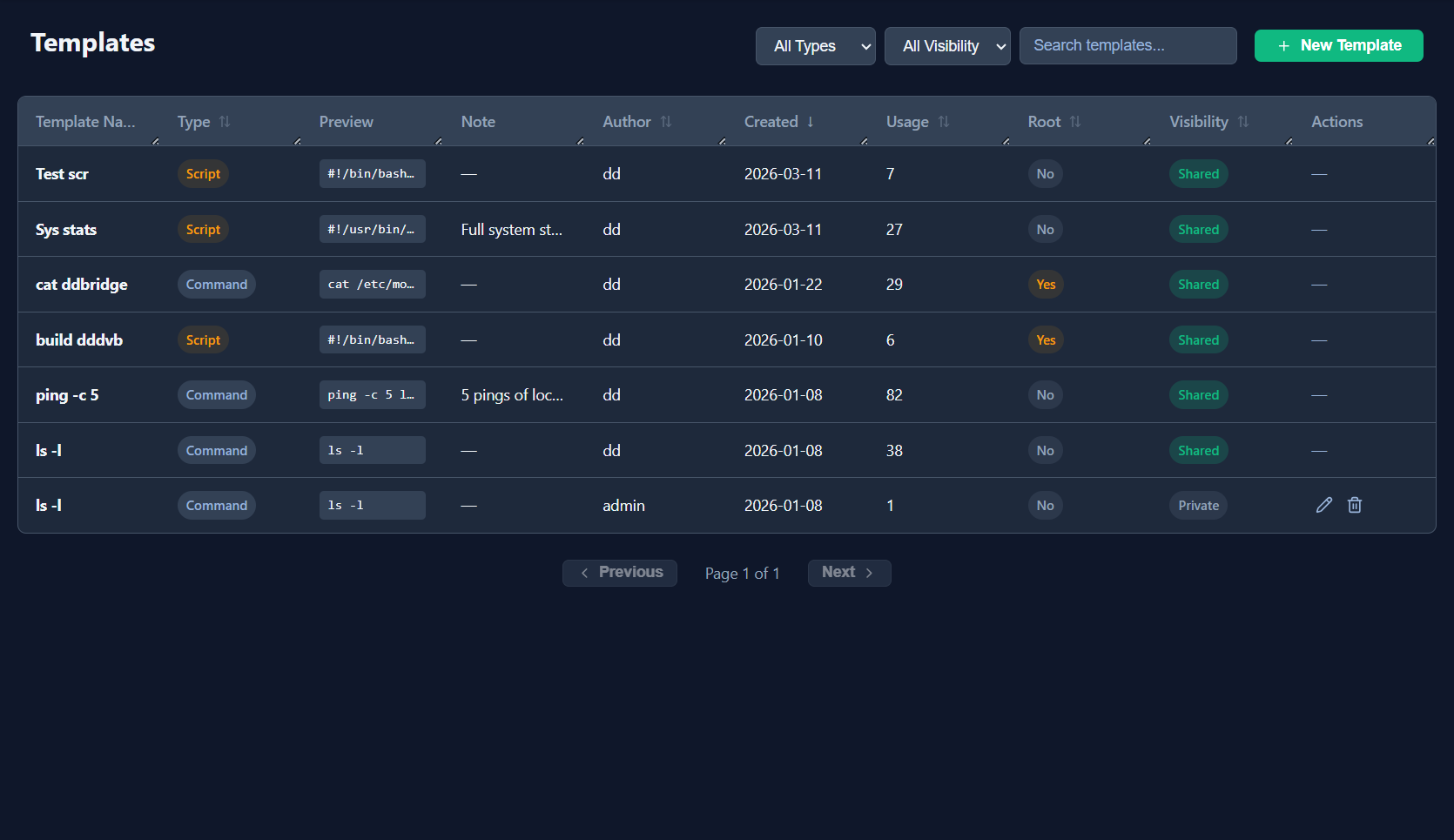
Table Columns
Section titled “Table Columns”| Column | Description |
|---|---|
| Template Name | Display name; click the header to sort |
| Type | Command or Script |
| Preview | First line(s) of content |
| Note | Optional description; shown as a tooltip on hover |
| Author | Username of the admin who created it |
| Created | Date the template was saved |
| Usage | Total number of times run or inserted across all admins |
| Root | Yes (orange) — runs with elevated privileges; No (grey) |
| Visibility | Shared (green) — visible to all admins; Private (grey) — author only |
| Actions | Pencil (edit) and trash (delete) — visible only to the template’s author |
Filtering and Sorting
Section titled “Filtering and Sorting”Filter by type (All / Command / Script), visibility (All / Private / Shared), or free-text search. Click any sortable column header to toggle order.
Creating a Template
Section titled “Creating a Template”- Click + New Template.
- Fill in the fields:
| Field | Required | Notes |
|---|---|---|
| Name | Yes | Short descriptive label shown in the list |
| Type | Yes | Command or Script |
| Content | Yes | The command text or full script body |
| Note | No | Human-readable description or usage hint |
| Root | No | Check if the script should run with elevated privileges |
| Visibility | Yes | Private (default) or Shared |
- Click Save.
Editing and Deleting
Section titled “Editing and Deleting”Only the author of a template can edit or delete it. Templates created by other admins show no action buttons.
- Edit — Click the pencil icon → modify fields → Save.
- Delete — Click the trash icon → confirm. This cannot be undone.
Using Templates in a Session
Section titled “Using Templates in a Session”In the Tools & Notes sidebar, expand a template to choose an action:
| Action | Behaviour |
|---|---|
| ▶ Run | Executes immediately in the active SSH tab |
| >_ Insert | Pastes into the terminal input line without running — lets you edit before executing |
| Copy | Copies the raw content to the clipboard |
| Report | Runs the script, then saves the full output as a new Client Note on the current session |
Press Alt+N from anywhere in the workspace to open the Templates picker overlay.
Visibility and Ownership
Section titled “Visibility and Ownership”| Scenario | Can see | Can run | Can edit / delete |
|---|---|---|---|
| Author, Private | ✅ | ✅ | ✅ |
| Author, Shared | ✅ | ✅ | ✅ |
| Other admin, Shared | ✅ | ✅ | ❌ |
| Other admin, Private | ❌ | ❌ | ❌ |