
Workspace
Esta página aún no está disponible en tu idioma.
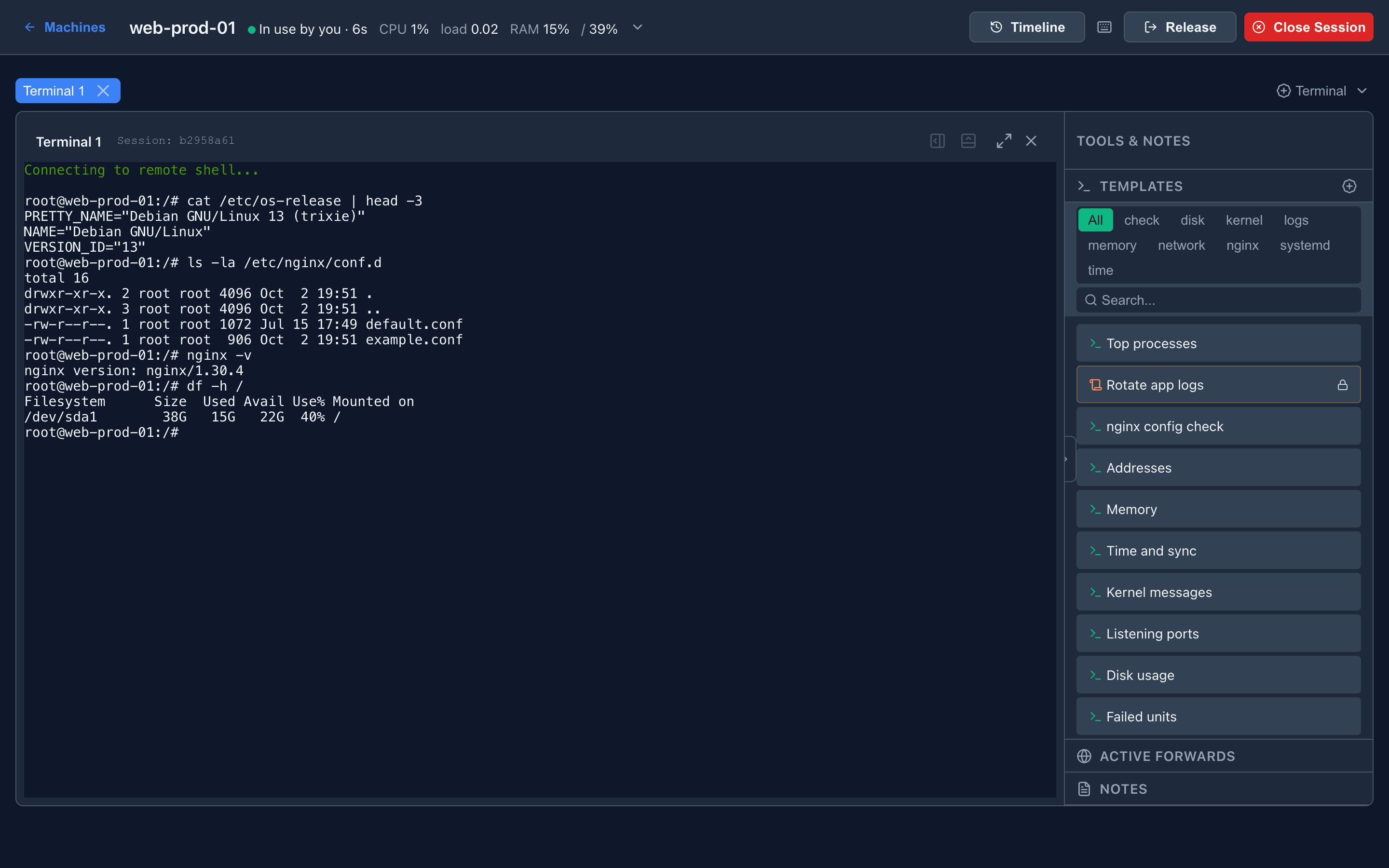
Click Connect on a machine to open its workspace. Connecting takes the machine: other admins see In use by you and cannot open it until you leave.
Header
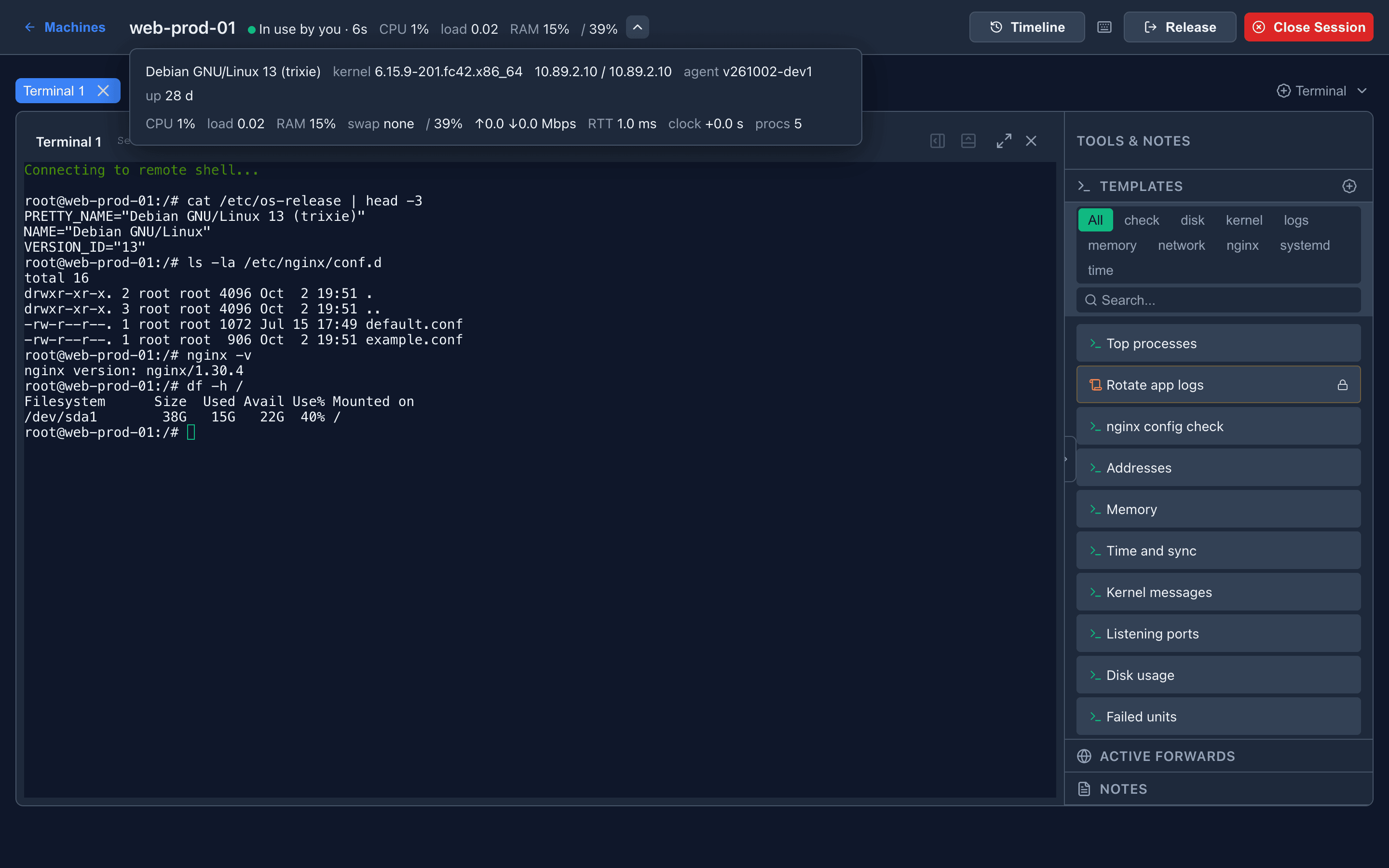
Section titled “Header”One line: the machine, its state and how long you have held it, CPU, load, RAM and the fullest disk. Three warnings show only when they apply: a disk at 90 % or more, a clock off by more than 2 s, and agent update available.
The arrow beside the stats opens the details — distribution, kernel, addresses, agent version, uptime, swap, every disk, network rate, tunnel round-trip time, clock offset and process count. Escape or a click elsewhere closes it.
| Button | Action |
|---|---|
| Timeline | What happened on this machine — see Machines |
| Update agent | Shown when the agent is older than the server and can be updated from the panel — see Updating |
| ⌨ | The shortcut list (Alt+/) |
| Release | Give the machine back. Terminals and tabs close |
| Close Session | End the agent’s connection. The agent reconnects by itself within seconds as a new session |
Leaving the page — ← Machines, the browser’s Back, closing the tab — releases the machine too. If a file has unsaved changes you are asked first. A machine is also released when your admin session ends: logout, idle expiry, deactivation.
| Tab | Open with | Named |
|---|---|---|
| Terminal | + Terminal or Alt+T | Terminal 1, Terminal 2, … |
| Files | the ▾ beside + Terminal, or Alt+C | Files |
| Web | the ▾ menu, or Alt+W | Web :8080 once connected |
| File editor | F3 / F4 on a file in the Files tab | the file’s name |
| Report | Report on a template | the template’s name |
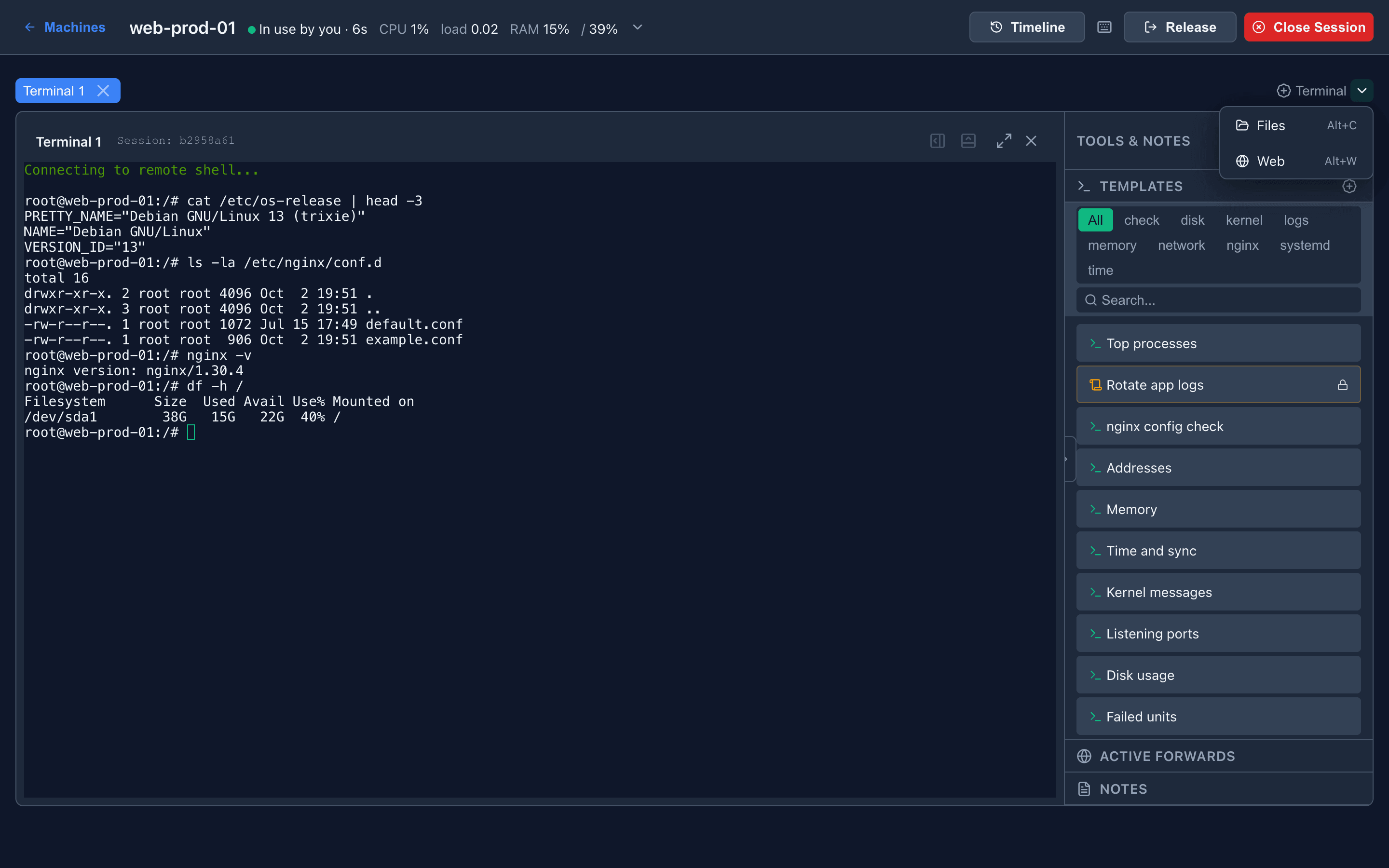
Double-click the selected tab to rename it for this page view. Closing a terminal whose shell is still running asks first.
Each tab’s header has four buttons: split right, split down, fullscreen, close. A split opens an empty pane next to the current one; open any tab type in it. Drag the divider to resize, double-click it for 50/50. Layouts are not kept across a page reload.
Sidebar
Section titled “Sidebar”Tools & Notes has three sections. Each opens and closes on its own, and which are open is remembered per admin on the server. At 900 px and below the sidebar is a drawer: the edge button opens it, Escape closes it.
| Section | Contents |
|---|---|
| Templates | Your templates and the shared ones, filtered by tag chips or search. + creates one. See Templates |
| Active forwards | Every live Web forward on this machine: port, owner, state, age, Stop |
| Notes | Notes about this machine, shared by all admins. Add Note adds one; the history below lists them with author and time |
When the machine drops
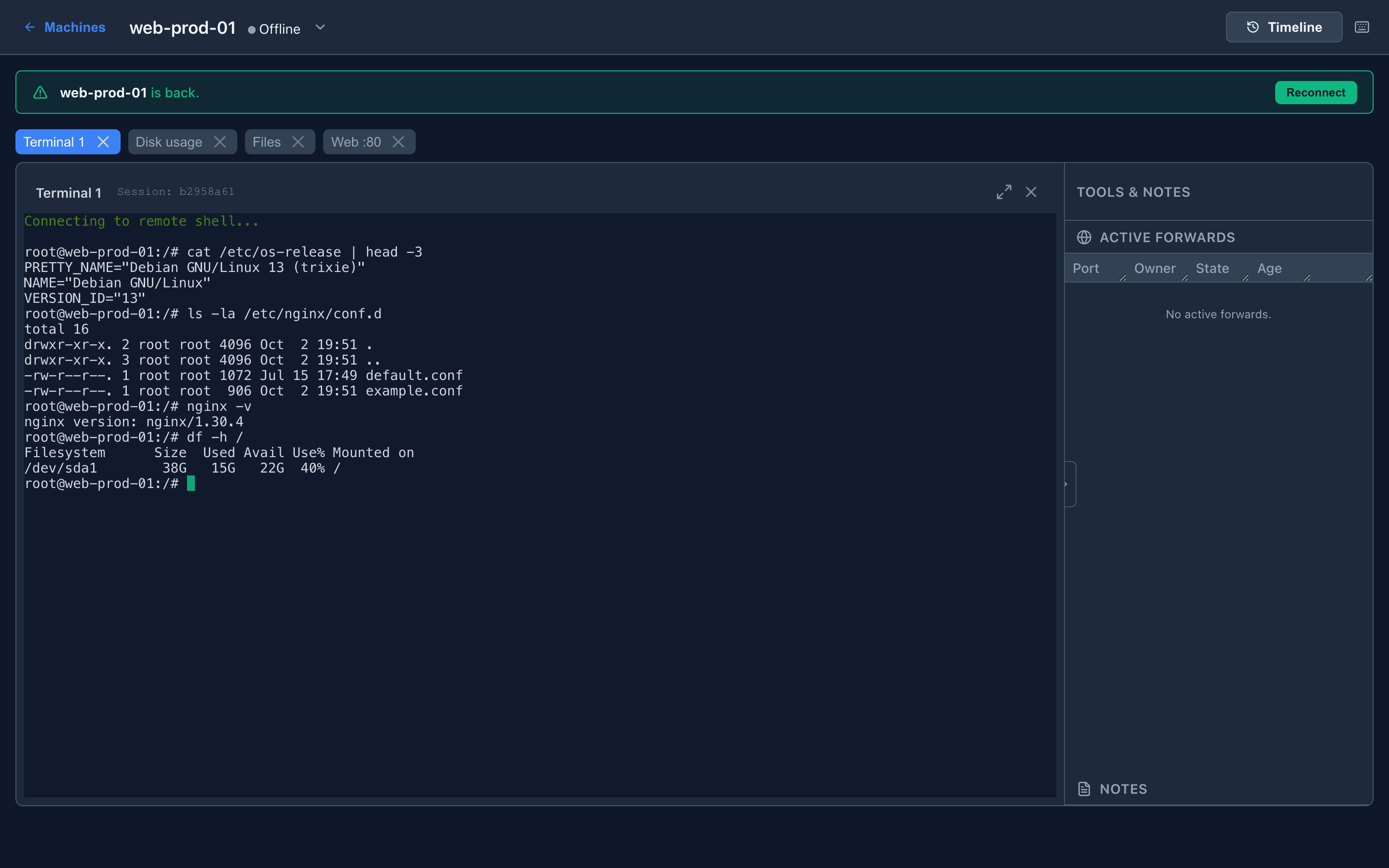
Section titled “When the machine drops”The workspace stays. A banner says Disconnected — waiting for the machine; terminals keep their text but take no input, Files and Web tabs are dimmed, open files turn read-only and keep your unsaved text.
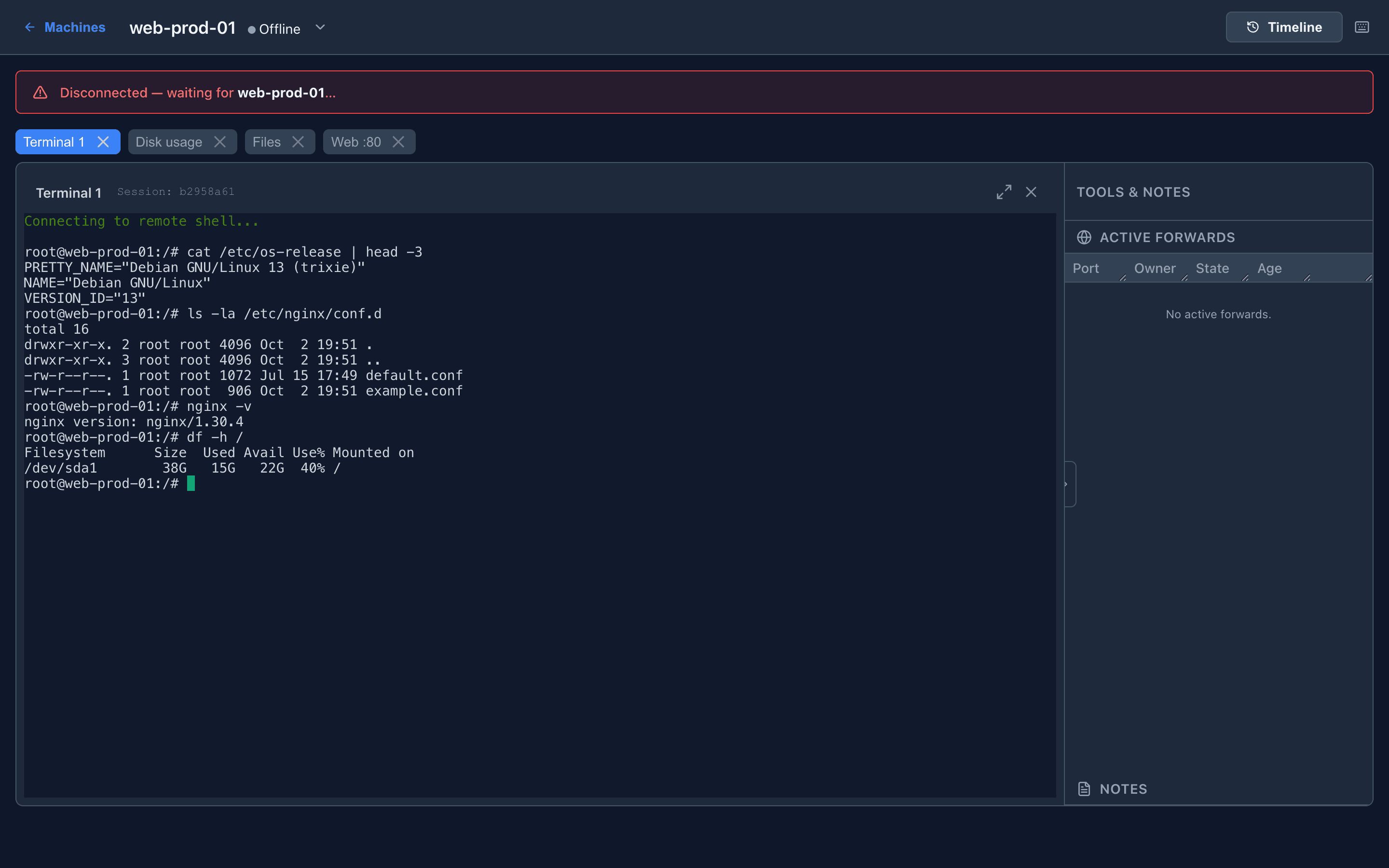
When the machine is back, the banner offers Reconnect: it takes the new session and reopens the same kinds of tabs, a Web tab with its port filled in. If another admin took the machine meanwhile, the banner says who.
Keyboard shortcuts
Section titled “Keyboard shortcuts”Alt+/ lists every shortcut, including the file list and editor keys. All of them work while a terminal has focus; the shell gets every other key.
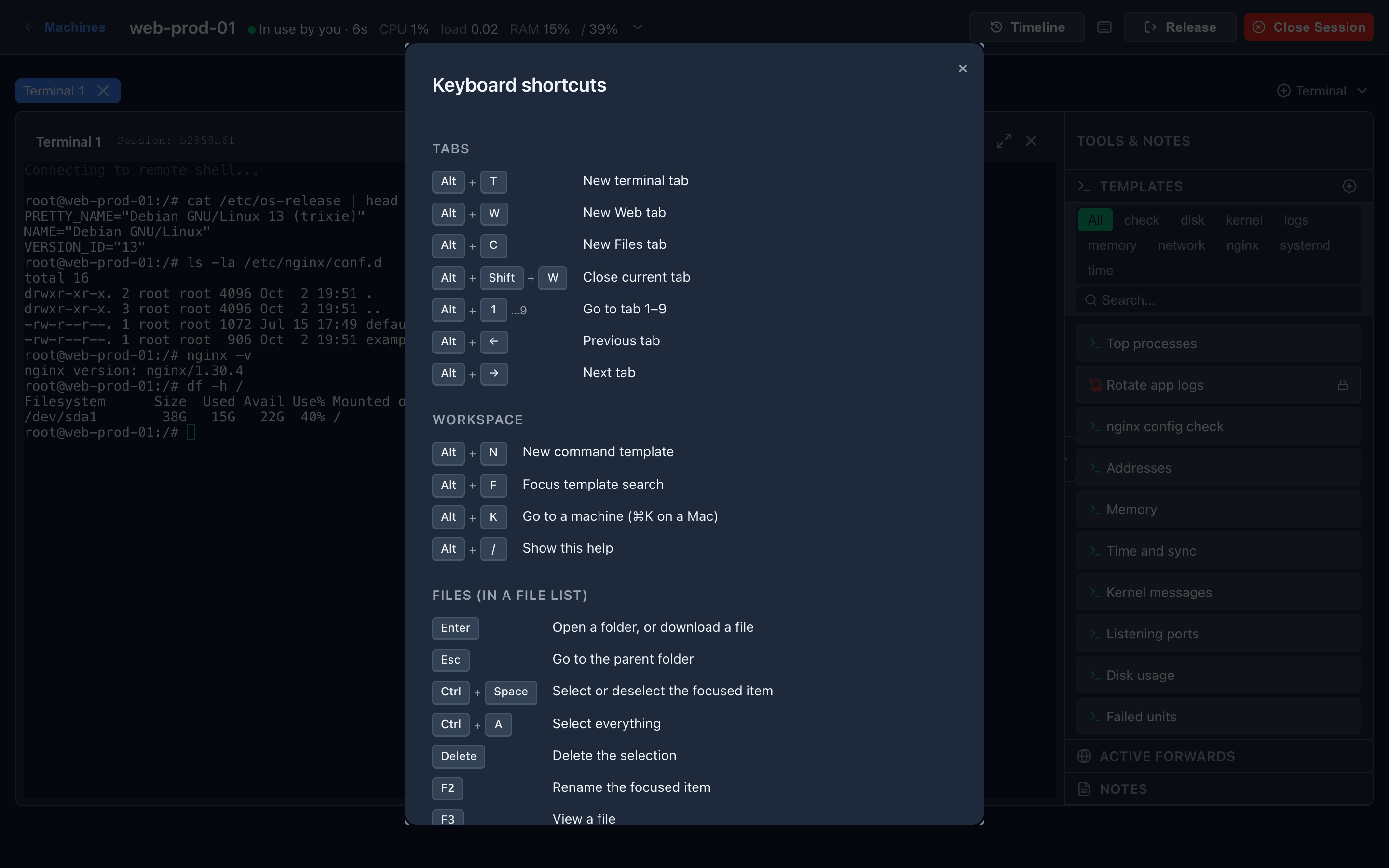
| Shortcut | Action |
|---|---|
Alt+T / Alt+C / Alt+W | New Terminal / Files / Web tab |
Alt+Shift+W | Close the current tab |
Alt+1 … Alt+9 | Go to tab 1–9 |
Alt+← / Alt+→ | Previous / next tab |
Alt+N | New command template |
Alt+F | Focus the template search |
Alt+K (⌘K on a Mac) | Go to a machine by name, IP, hostname or note |
Alt+/ | Show the shortcut list |
Shortcuts match the physical key, so they follow QWERTY positions on other layouts.