
File Editor
Esta página aún no está disponible en tu idioma.
F3 views a file, F4 edits it, from the Files tab or its right-click menu. The file opens in its own workspace tab named after it; the machine header, the other tabs and the sidebar stay in view. A file that is already open switches to its tab.
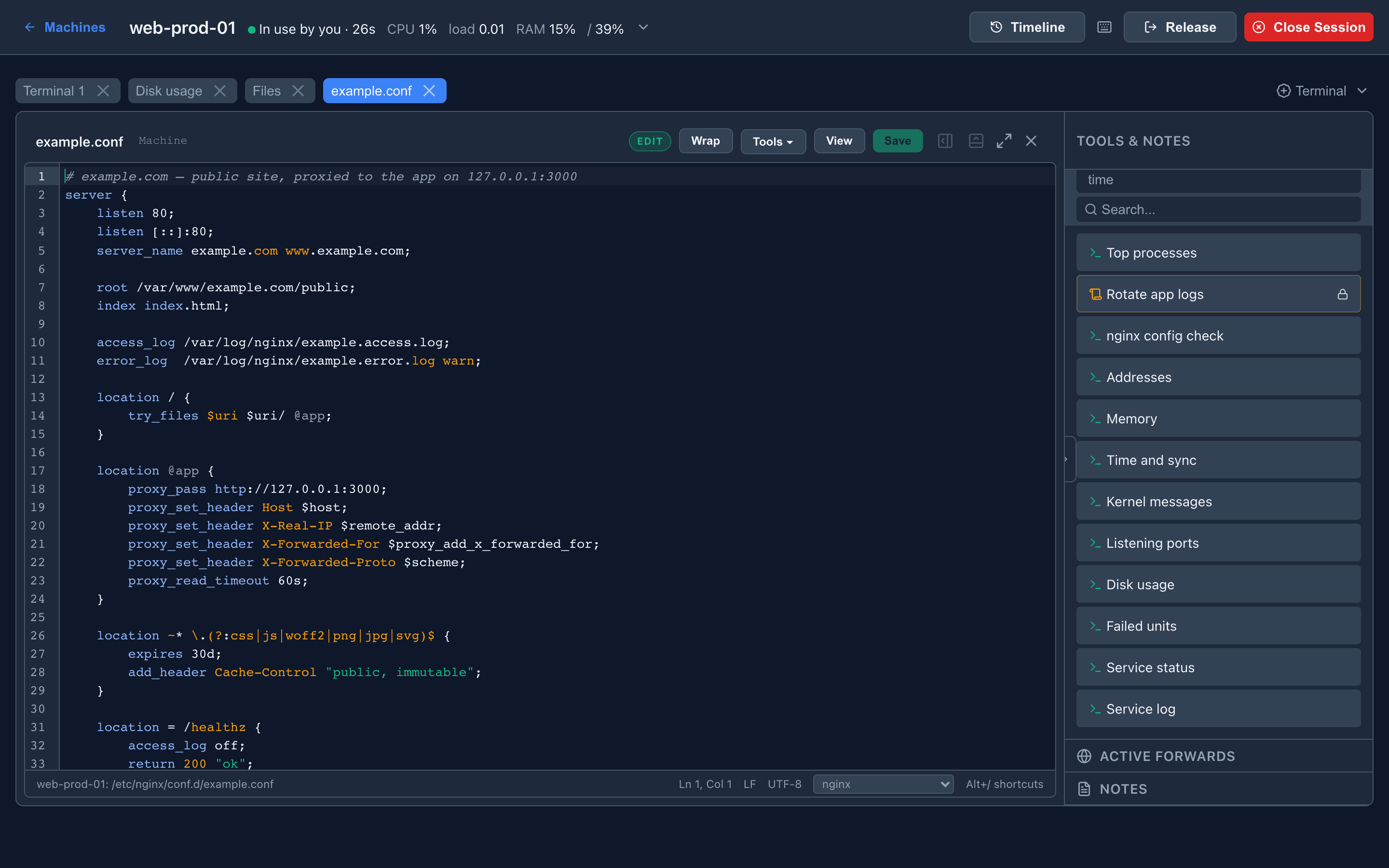
| Control | Does |
|---|---|
| EDIT / READ-ONLY | The mode. F4 or View / Edit switches without losing undo history or unsaved changes |
Wrap (Alt+Z) | Wrap long lines |
| Tools ▾ | Reload, diff, save as, backups, checks and line tools — below |
Save (Ctrl+S, ⌘S) | Write the file |
| Status bar | Machine and path (click to copy), cursor position, line endings, encoding, language picker, Alt+/ |
A dot on the tab marks unsaved changes. Closing the tab, reloading the page, Release, Close Session and Reconnect ask first. Esc closes the search box, completions or a selection first, then the tab, and puts you back on the file in the list.
Highlighting
Section titled “Highlighting”Picked from the file’s name, place and first line: nginx configs (anything under an nginx directory), systemd units, .ini / .conf / .cnf / .env and sshd_config, Dockerfiles, diffs and patches, logs (*.log, *.log.1, files under /var/log — errors red, warnings amber, debug dimmed, wrapped), shell, YAML, TOML, JSON, XML, Python, JavaScript / TypeScript, Go, PowerShell, HTML, CSS, Markdown and SQL. A script with no extension is recognised by its #! line. The status bar’s picker corrects a wrong guess.
Saving
Section titled “Saving”A save keeps the file’s permissions (setuid, setgid and sticky included) and, when the agent runs as root, its owner and group. Saving through a symlink writes the file it points at. A new file is created 0644. Windows line endings are kept; the status bar shows LF, CRLF, or Mixed → LF.
A file that is not UTF-8 opens read-only with a warning, because its non-UTF-8 bytes would be written back as �; F4 asks before letting you edit it anyway. Files over 5 MB cannot be opened whole — see Large files. Binary files show a notice.
Changed on disk
Section titled “Changed on disk”If the file changed after you opened it — an upload, another admin, a deploy — the save is refused and you choose.
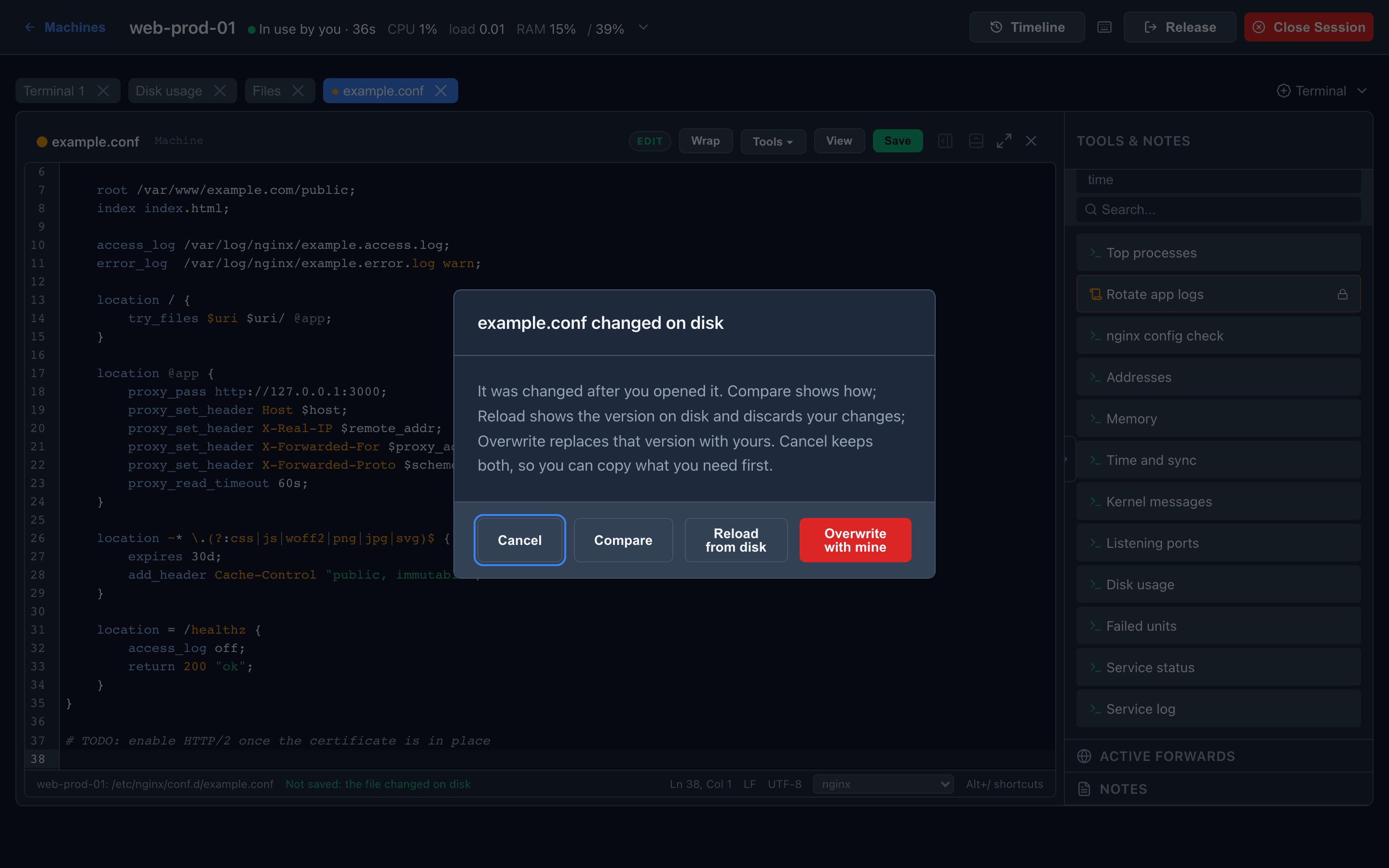
| Choice | Does |
|---|---|
| Compare | Shows how the version on disk differs from yours |
| Reload from disk | Discards your changes |
| Overwrite with mine | Replaces the disk version |
| Cancel | Keeps your text so you can copy what you need |
The first save of a new file is refused the same way if a file with that name appeared meanwhile. Machine files need the current agent for this; with an older one the editor saves as before and says it cannot detect such changes.
Backups
Section titled “Backups”Every save of a machine file keeps the version it replaces in WoHo storage under /.backups/<machine>/<path>/, the last 10 per file. If the backup cannot be written, the save asks before going on.
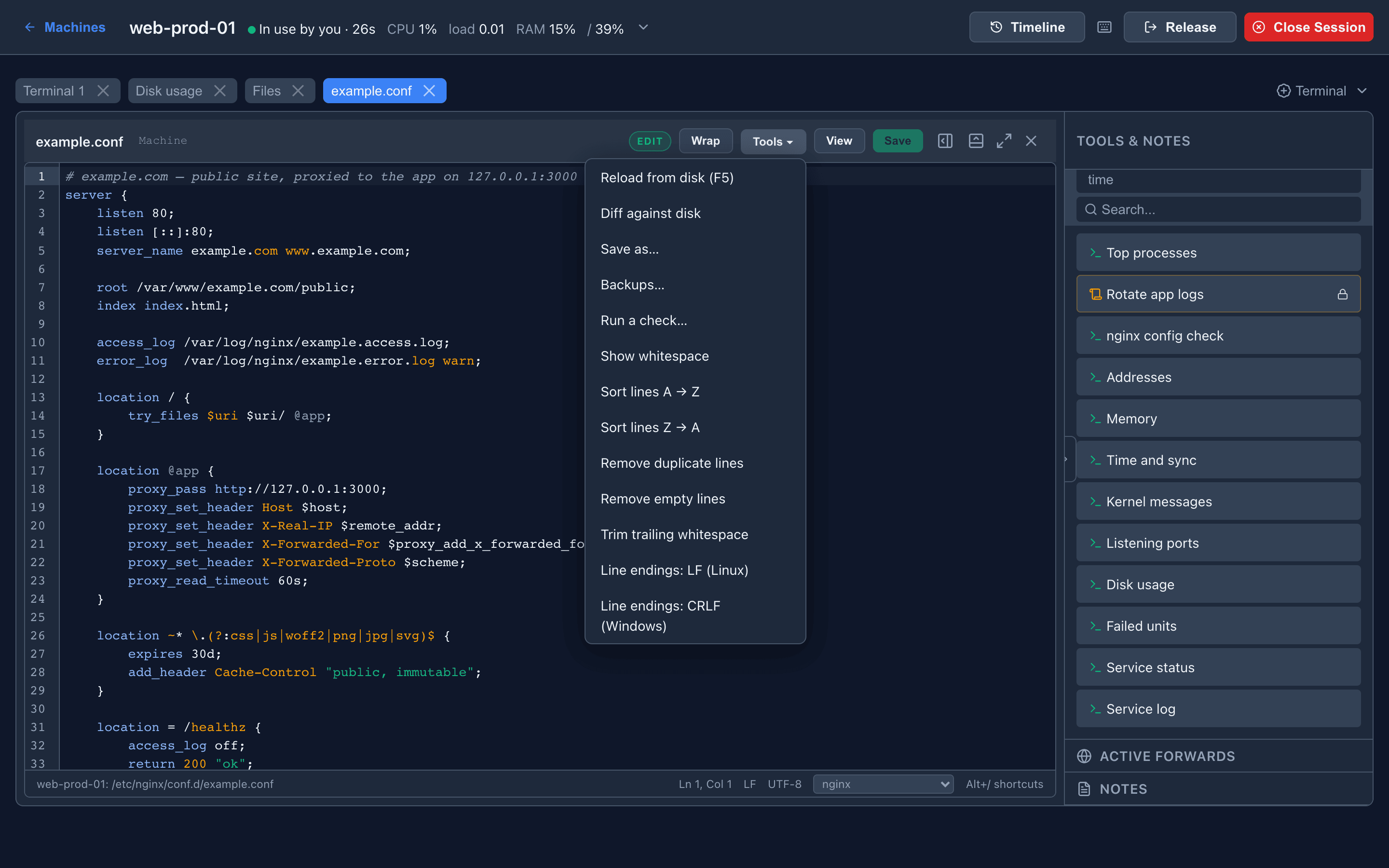
| Item | Does |
|---|---|
Reload from disk (F5) | Re-reads the file. Asks first when you have unsaved changes; with the cursor at the end it stays at the new end |
| Diff against disk | Your changes against the file as it is now |
| Save as… | Writes to another path. Never replaces a file there unasked |
| Backups… | Pick a backup, see how it differs from the tab, load it to restore |
| Run a check… | Runs a template whose command uses {{path}} — nginx -t -c {{path}} — on the open file, with the output and exit code in a report tab. The path is inserted shell-quoted, so do not quote {{path}} yourself |
| Show whitespace | Marks spaces and tabs |
| Sort lines, remove duplicate or empty lines, trim trailing whitespace, line endings LF / CRLF | On the selected lines, or the whole file when nothing is selected. Edit mode only |
Large files
Section titled “Large files”A machine file over 5 MB — typically a log — offers Show the end and Follow it instead of opening.
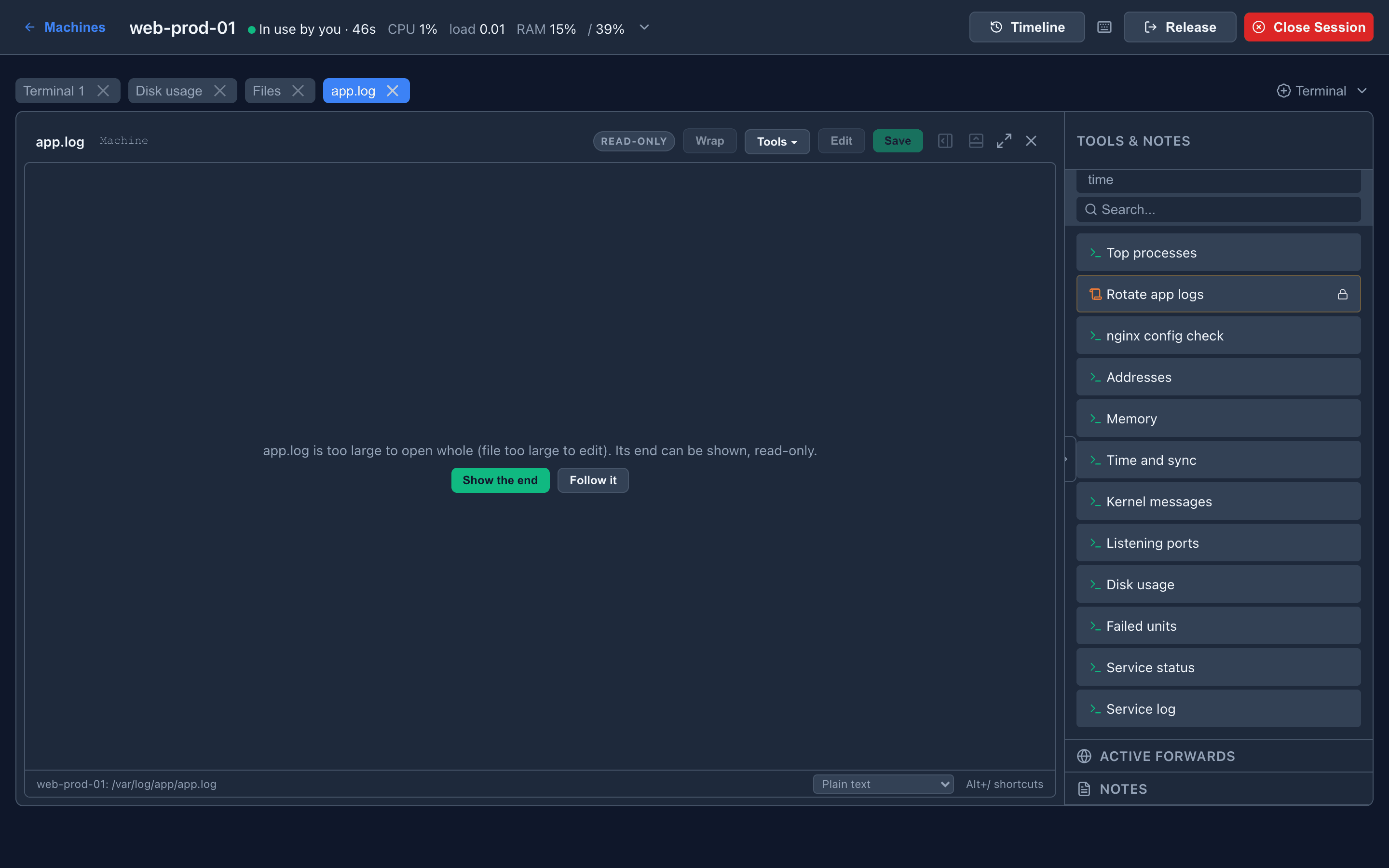
Show the end displays the last 256 KiB, starting on a line, read-only, with the range in the status bar. Follow it adds what is written to the file every second, survives rotation and truncation (marked in the text), says when it skipped bytes written faster than it can show, and keeps at most 2 MB in the browser. Pause / Follow and F5 restart it. Such a view can never be saved.
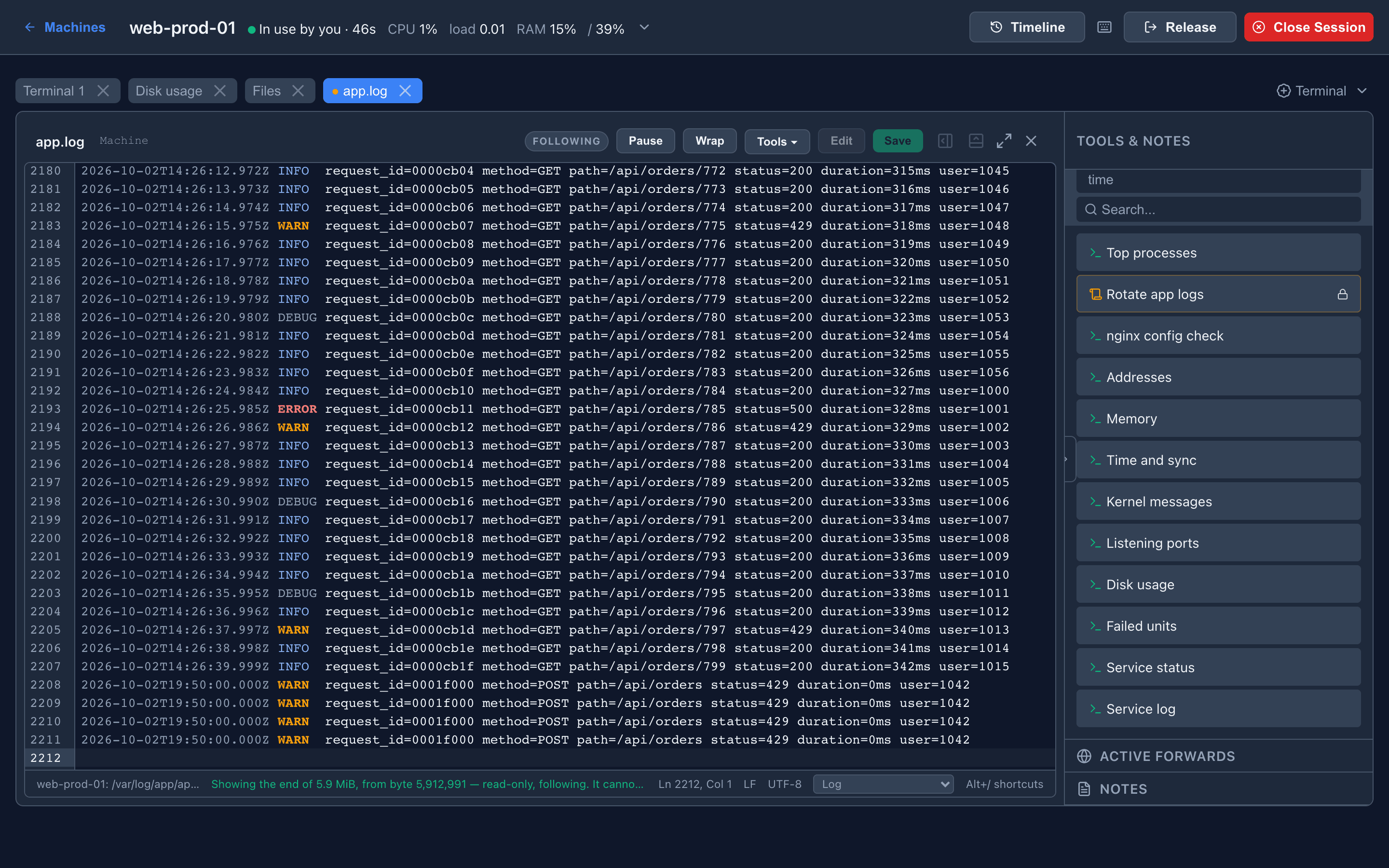
Up to four files can be followed per machine at once; a follow stops by itself after an hour, and when its page is closed.
Keyboard
Section titled “Keyboard”Alt+/ lists them in the panel. Ctrl is ⌘ on a Mac. The workspace’s own Alt shortcuts work from the editor, except Alt+← / Alt+→, which move the cursor — use Alt+1…9 for tabs.
| Key | Action |
|---|---|
Ctrl+S | Save |
F4 | Switch between view and edit |
F5 | Reload the file from disk |
Esc | Close the search box, completions or selection; then the tab |
Ctrl+F | Find (regex, match case, whole word) |
Ctrl+H | Replace (Windows and Linux; ⌘F on a Mac) |
F3 / Shift+F3 | Find next / previous |
Ctrl+G | Go to line |
Ctrl+Shift+L | Select every match of the selection |
Ctrl+D | Duplicate the line or selection |
Alt+↑ / Alt+↓ | Move the line (also Ctrl+Shift+↑ / ↓ on Windows and Linux) |
Shift+Alt+↓ / ↑ | Copy the line below / above |
Ctrl+Shift+K | Delete the line |
Ctrl+/ | Comment or uncomment |
Tab / Shift+Tab | Indent / outdent. Ctrl+M then Tab leaves the editor |
Ctrl+U / Ctrl+Shift+U | Lower / upper case |
Ctrl+Space | Complete a word already in the file (completions never pop up on their own) |
Ctrl+Alt+↓ / ↑, Alt+drag | Add a cursor below / above; select a column |
Ctrl+Shift+[ / ] | Fold / unfold the block |
Ctrl+Z / Ctrl+Y | Undo / redo |
Alt+Z | Wrap long lines |