
SCP File Browser
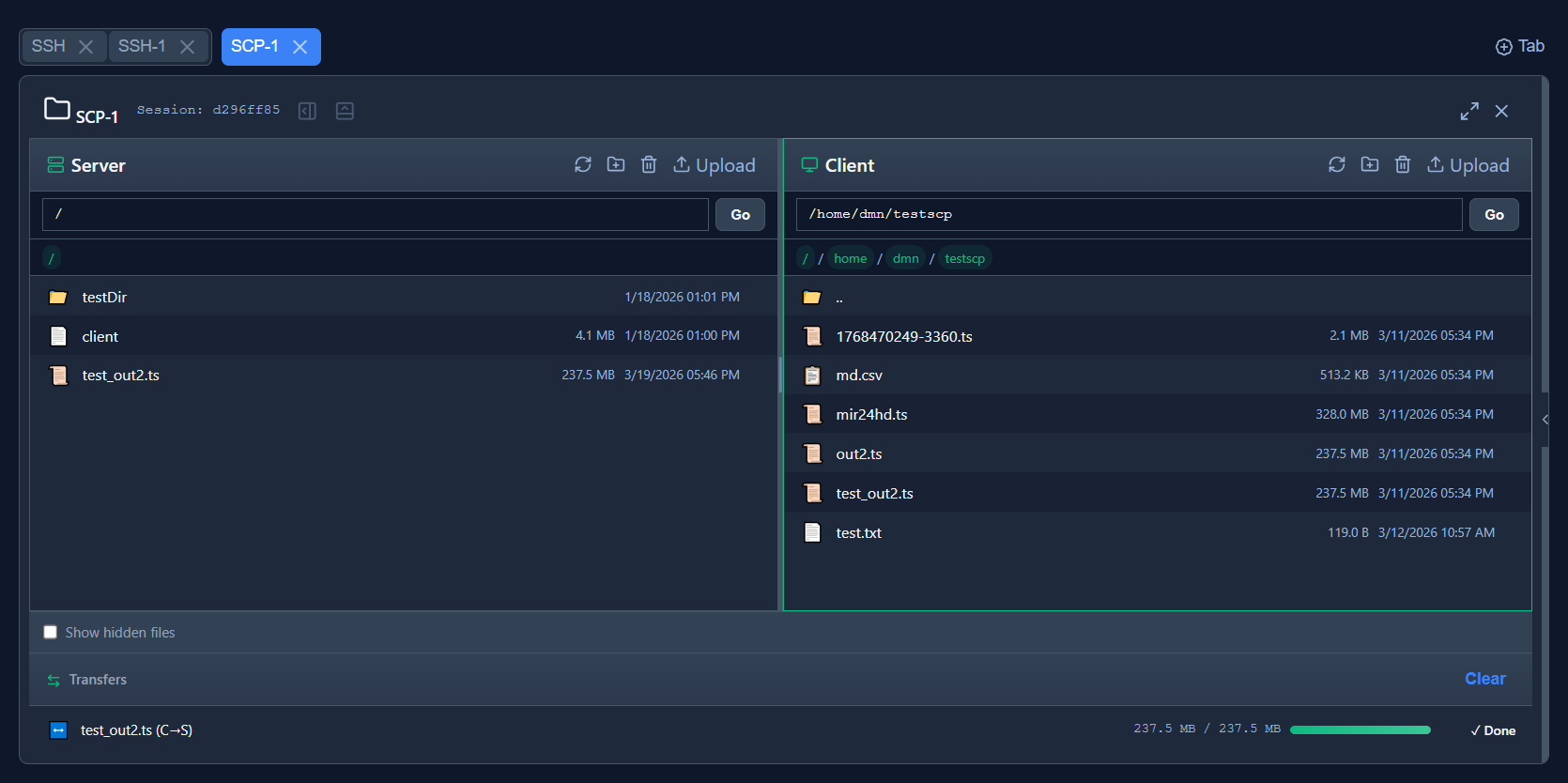
Layout
Section titled “Layout”| Pane | Contents |
|---|---|
| Server (left, green icon) | Files on the Woho server host |
| Client (right, green icon) | Files on the remote client machine |
Each pane has an editable path bar with a Go button, plus a clickable breadcrumb trail below it.
Enable Show hidden files (checkbox at the bottom) to include dotfiles such as .bashrc and .env.
Toolbar
Section titled “Toolbar”| Icon | Action |
|---|---|
| ↻ Refresh | Reload the current directory listing |
| ⊞ New folder | Create a new directory at the current path |
| 🗑 Delete | Delete the selected file or folder (confirmation required) |
| ⬆ Upload | Upload files from your local machine to this pane |
Transferring Files
Section titled “Transferring Files”Select a file in one pane and drag it to the other to copy it (Client → Server or Server → Client). Active and completed transfers appear in the Transfers section at the bottom of the panel:
test_out2.ts (C→S) 237.5 MB / 237.5 MB ████████████ ✓ DoneClick Clear to dismiss completed transfer entries.
Navigation
Section titled “Navigation”| Action | Method |
|---|---|
| Open a folder | Double-click |
| Go to parent directory | Click .. or any breadcrumb segment |
| Refresh listing | Click the ↻ icon |
Inline Viewer and Editor
Section titled “Inline Viewer and Editor”| Key | Action |
|---|---|
F3 | Open in read-only viewer |
F4 | Open in edit mode |
Ctrl+S | Save changes (edit mode only) |
Escape | Close viewer / editor |
The Toggle button in the viewer header switches between read-only and edit mode without closing and reopening the file.
Syntax highlighting is supported for: JS, TS, HTML, CSS, JSON, Python, Shell/Bash, YAML, Nginx config, SQL, Markdown, XML, Dockerfile, and many more.